AI Studio
AI Studio is a console for the people who build with AI rather than operate the gateway. In a few clicks, a team gets its own workspace: an OpenAI-compatible endpoint, API keys, the providers of its choice with its own provider keys, a playground to chat with every model, and dashboards showing where tokens and dollars go.
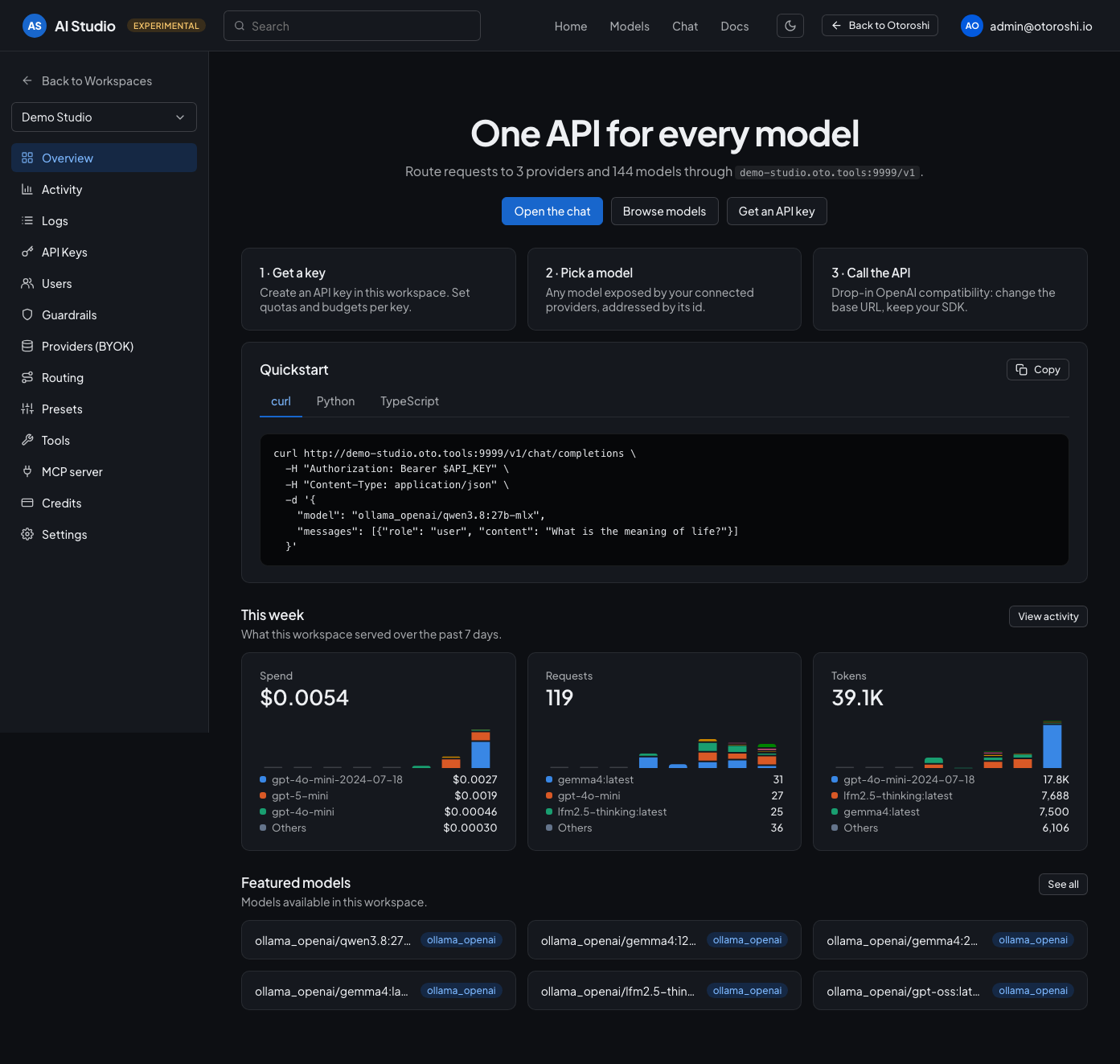
The home page of a workspace: its OpenAI-compatible base URL, ready to copy, a quickstart in curl, Python and TypeScript for each kind of call the workspace serves, the week it just had and the models ready to use.
The home page also shows the week the workspace just had — what it spent, how many calls it served and how many tokens it moved, day by day, with the models behind each figure — so the first thing a team sees is where its budget went, without leaving for a dashboard.
AI Studio does not store anything of its own. Every workspace is made of regular Otoroshi entities (a team, a route, API keys, LLM providers, budgets…) that the studio creates and updates live through the admin API. What you do in the studio is visible in the Otoroshi backoffice, and what you change in the backoffice shows up in the studio.
It is an opinionated way to use the LLM extension. The extension leaves every door open; the studio picks one answer per question — a workspace is one route and one team, an API key belongs to someone, credits are budgets scoped to the workspace, MCP connectors speak the stateless revision of the protocol. That is what turns a page of settings into a few clicks. Nothing is closed off: because the entities behind a workspace are ordinary ones, whatever the studio does not show is one click away in the backoffice, on the very same entity.
AI Studio is experimental. It covers the most common needs of a workspace, but not everything the LLM extension can do: some settings of the entities it creates are only available from the Otoroshi backoffice. Its screens and behavior may change in future releases.
Prerequisites
- The LLM extension installed in Otoroshi (see installation).
- An active User Analytics (PostgreSQL) data exporter, required for the whole studio to work. It feeds the Activity dashboards, the Logs, and the usage by model, by API key and by user. Without it, those pages stay empty: only providers, API keys, routing and live budget consumption keep working. To set it up, go to Data exporters in the backoffice, create a User Analytics (PostgreSQL) exporter and mark it as the active user analytics exporter (see built-in dashboards).
- A PostgreSQL database for chat conversations (recommended). By default, conversations are kept in
the Otoroshi datastore. For many users or a long history, store them in PostgreSQL instead, from the
setup section. The PostgreSQL server of the user analytics exporter works fine: the studio
uses its own
ai_studio_conversationstable.
Opening AI Studio
AI Studio is served by the extension at /extensions/cloud-apim/ai-studio, for instance
https://otoroshi.oto.tools/extensions/cloud-apim/ai-studio. You can also open it from the
AI Studio tile of the backoffice home page, or by searching "AI Studio" in the backoffice search
bar.
It uses your backoffice session: you are redirected to the login page when you are not signed in, and you only see and change what your rights allow. The Back to Otoroshi button in the top bar brings you back to the backoffice.
The studio comes with a light and a dark theme, and can follow your system setting. The choice is saved
in your backoffice user preferences. Press ⌘K (or Ctrl+K) anywhere to jump to a workspace, a page
of the current workspace, its models or its chat without leaving the keyboard.
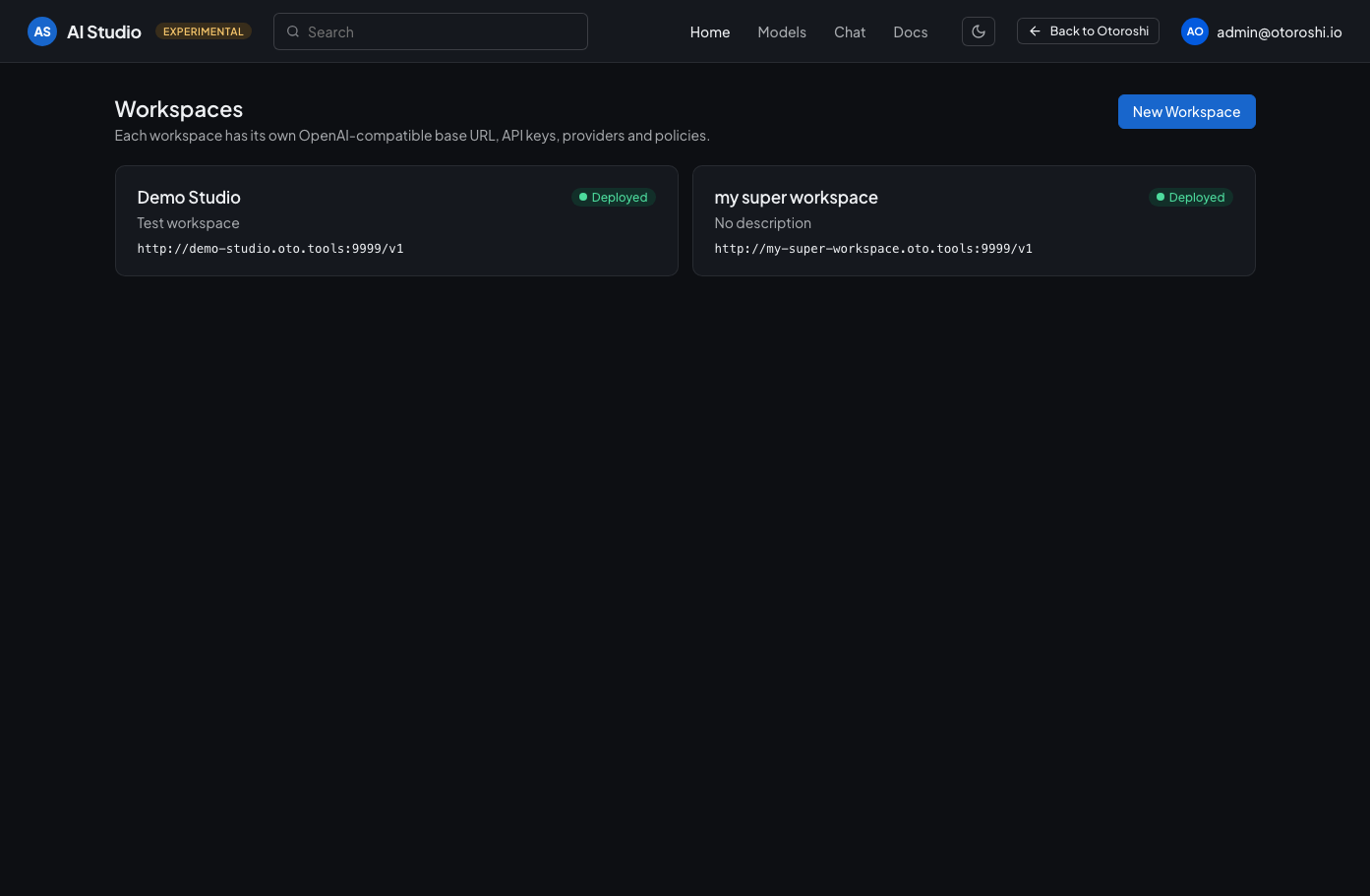
Every workspace you can access, with its base URL.
Workspaces
A workspace is an isolated AI endpoint for a team or a project. Creating one creates:
| In AI Studio | In Otoroshi |
|---|---|
| The workspace | A team owning every entity of the workspace, and a route exposing the OpenAI Compatible API on its own base URL |
| An API key | An API key authorized on the route of the workspace |
| A provider | One LLM provider entity per capability you enable (text, embedding, image, audio, moderation, OCR, video, decision) |
| Guardrails and model access | The guardrails and model constraints of the providers of the workspace |
| Routing | Provider fallbacks, load balancers and Otoroshi routers |
| Presets | Prompt contexts attached to the providers |
| Tools | Tool functions, MCP connectors and search engines attached to the providers |
| MCP server | An MCP virtual server served on the /mcp path of the route |
| Credits | Budgets, always scoped to the workspace |
Every entity is tagged with the ai_studio_workspace metadata, so you can find everything that belongs
to a workspace from the admin API:
curl 'https://otoroshi-api.oto.tools/apis/ai-gateway.extensions.cloud-apim.com/v1/providers?filter.metadata.ai_studio_workspace=<workspace id>'
The route of a workspace requires an API key of that workspace, and can restrict the IP addresses allowed to call it. Deleting a workspace deletes all of its entities.
What you can do in a workspace
Connect providers (BYOK)
Pick a provider from the catalog, paste your provider key, and choose the capabilities to enable. The studio only shows the capabilities each provider really supports, and fetches the list of available models from the provider. Local Ollama models work without any key.
The catalog tells you what to expect before you even connect a provider: whether the gateway talks to it through an OpenAI compatible API, how many models it offers and of which types, its starting price and its largest context window, with a link to its documentation. Filter it by capability, by OpenAI compatibility or to the providers whose prices are known.
When you pick the default model of each capability, the suggestions only list the models fitting it (embedding models for embeddings, speech models for text to speech, and so on), with their context window and price. Turn on Require known costs to refuse, and hide, every model the gateway cannot put a price on: those it knows no price for, and those priced in a unit it cannot measure on the call. Every call of the provider then counts against your dollar budgets.
Each connected provider also shows its health over the last 24 hours: the share of calls that succeeded, median latency and generation speed. A provider that starts failing stands out at a glance.
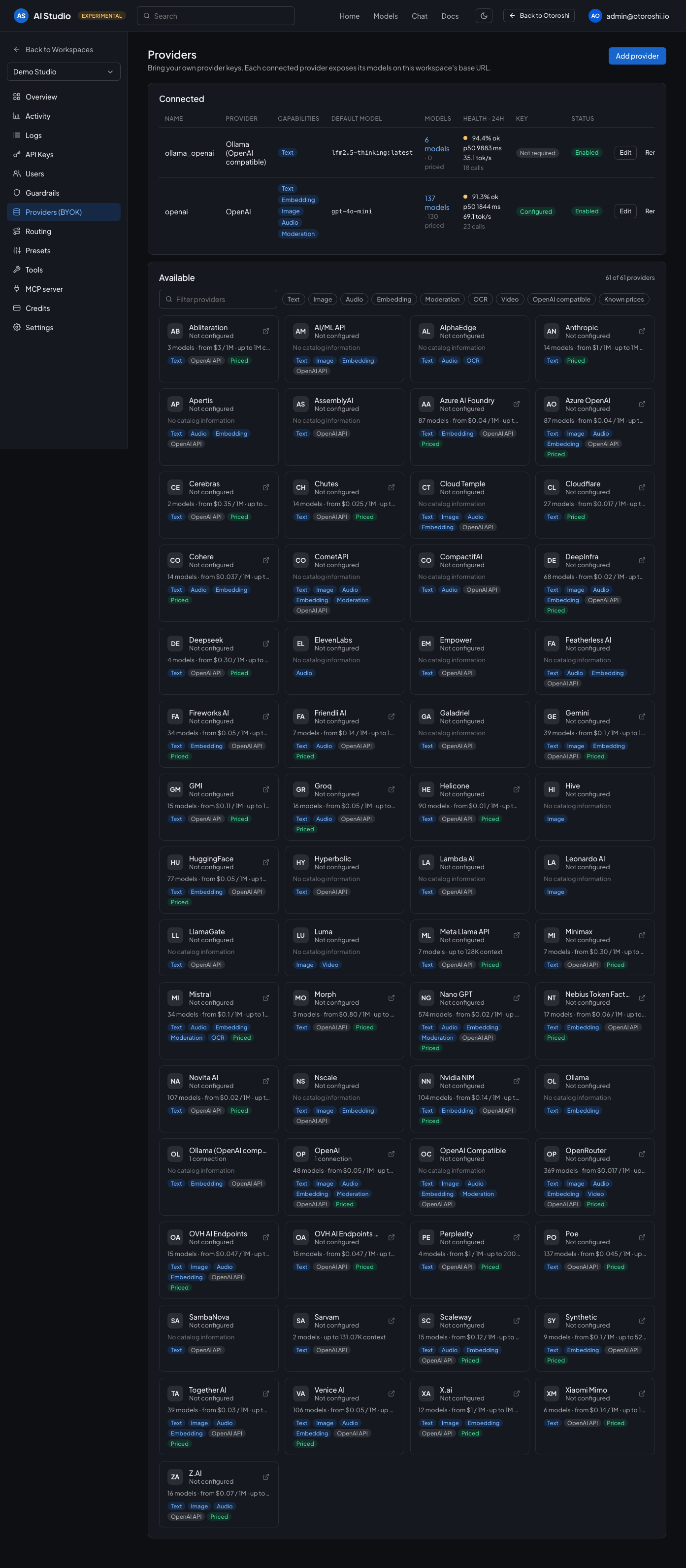
Connected providers on top, with their health over the last day, and the catalog below with the capabilities of each provider.
Find the right model
Models lists every model reachable through the workspace endpoint, with the exact id to put in the
model field of your requests. Each model shows its types, capabilities (reasoning, tools, structured
output, vision, PDF, audio, prompt caching, web search), context window and price per million tokens.
Filter them by type, capability, API endpoint, known price, context window and provider, sort them by
price or context, switch to a comparison table, and open any model for its full details and a ready to
paste request.
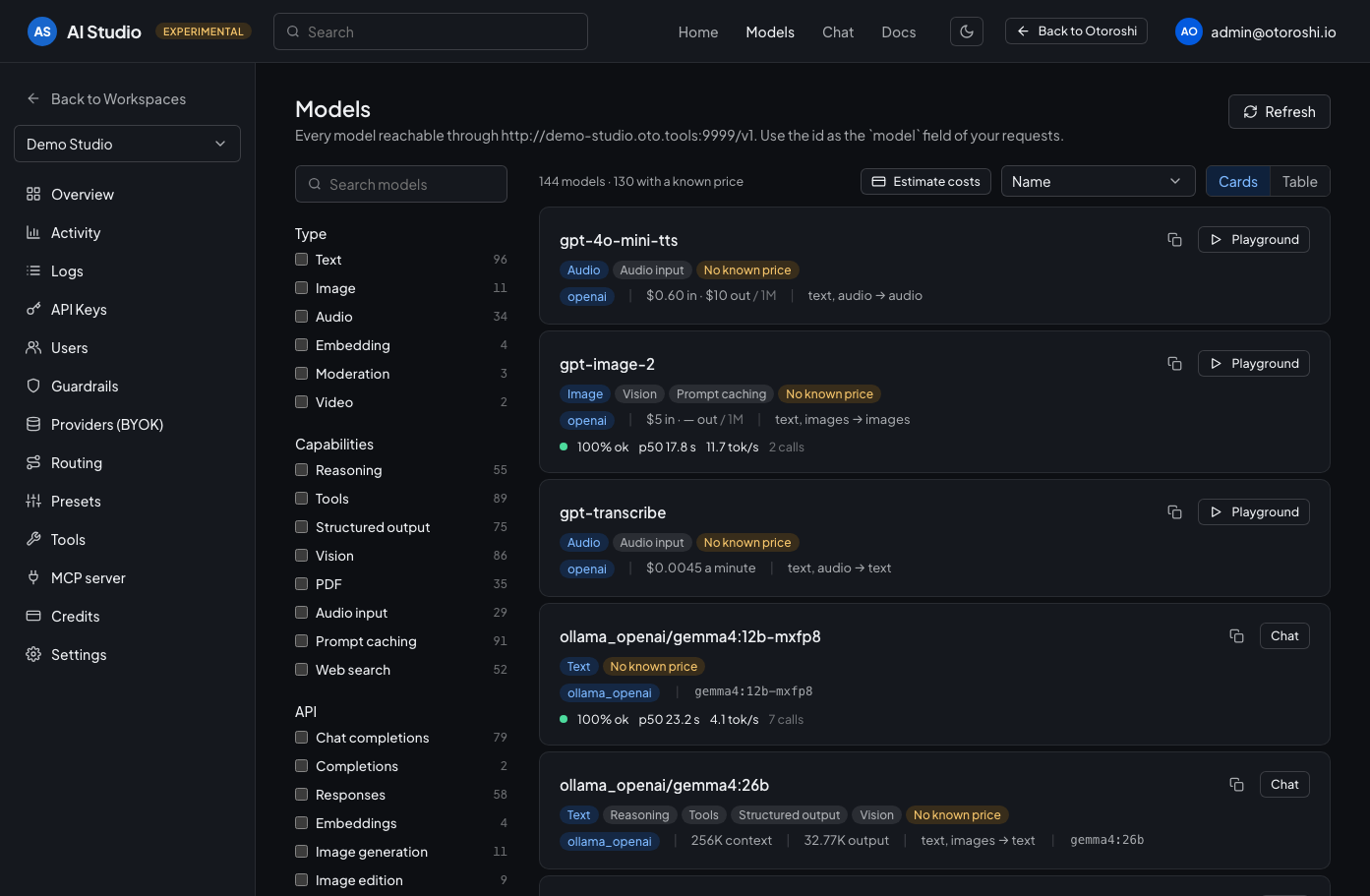
Every model of the workspace, with the id to use in your requests, its capabilities and its price.
Estimate costs answers "what would this cost us?" before you commit to a model: describe a workload (tokens in and out per request, requests per month, share of the prompt served from cache) or start from a typical one (chat message, RAG answer, agent step, summary), and every model shows what it would cost per request and per month at its list price, the cheapest first.
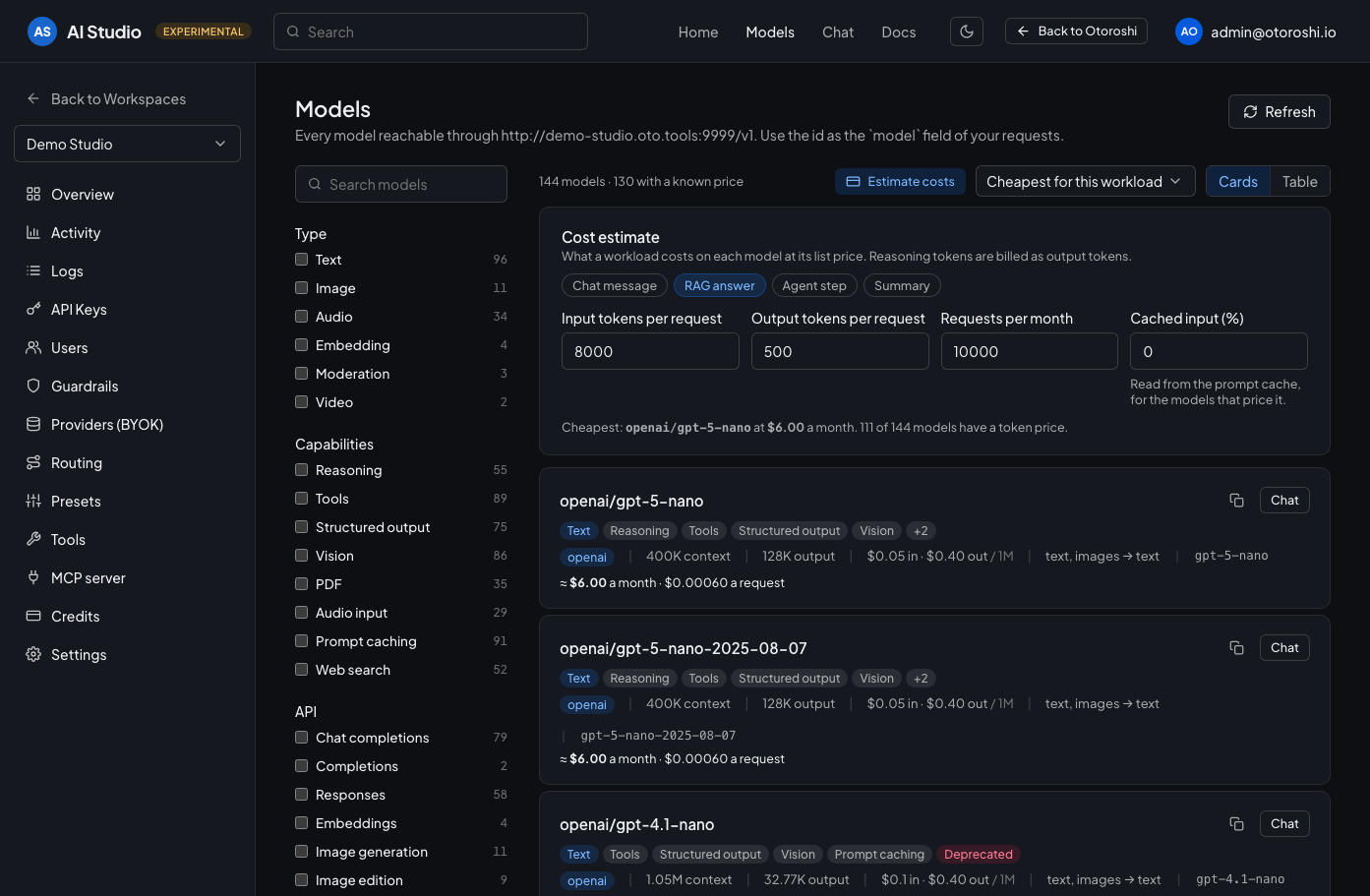
One workload, and what it would cost each month on every model of the workspace.
The models also show how they actually behave in your workspace: the share of calls that succeeded, median latency and generation speed, over the last day, week or month. Filter the healthy, degraded or failing ones, sort by usage, latency or speed, and open a model for its p95 latency, time to first token and last failure, with a link to its calls. The refusals of the gateway itself (guardrails, budgets, model restrictions) never count as failures of a model, and answers served from the cache never skew its latency.
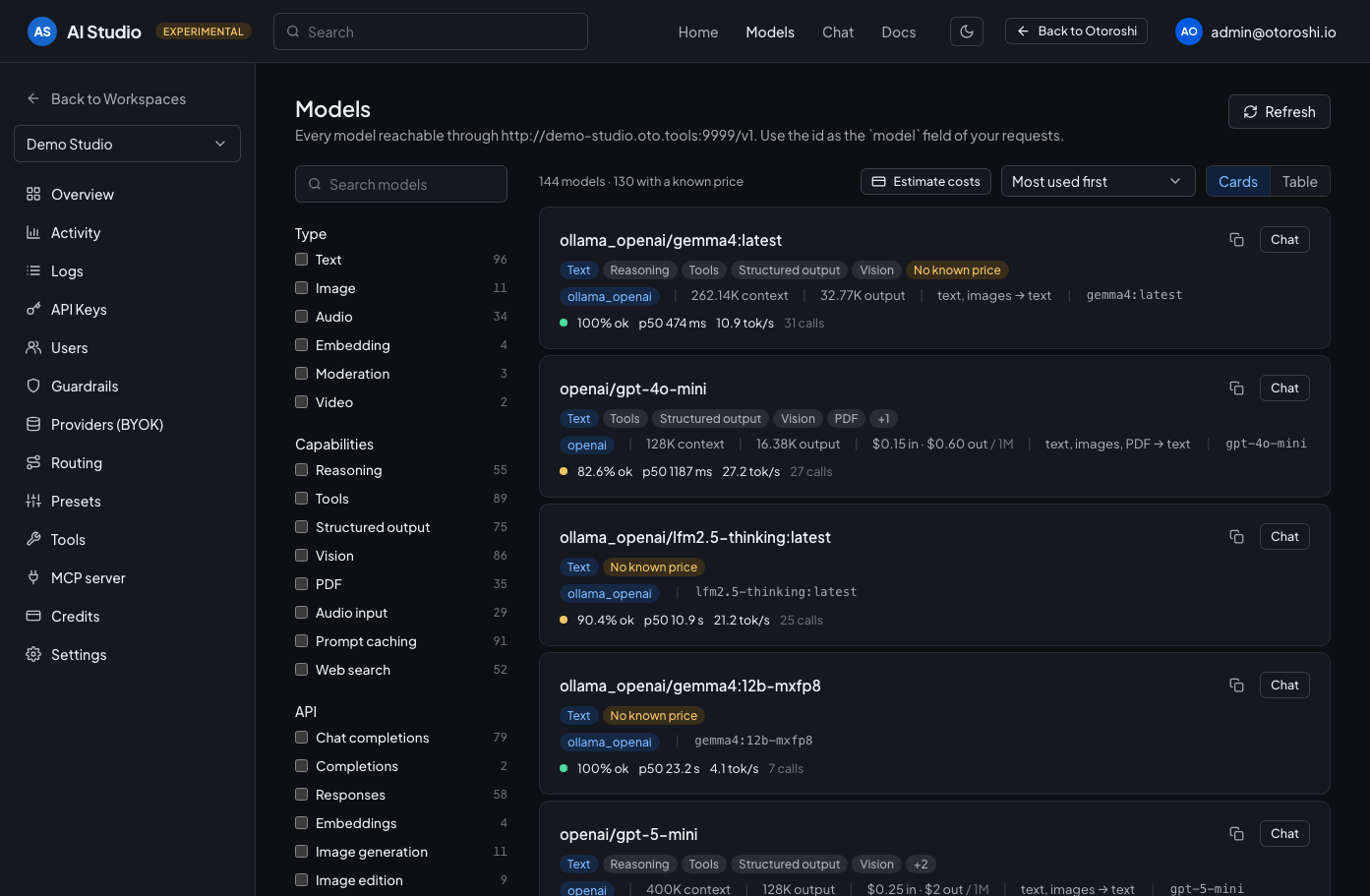
The busiest models of the week, with the share of their calls that succeeded, their median latency and their speed.
A model that does not chat is one click away from being tried anyway. Every image, embedding, speech, transcription, translation, moderation, OCR and decision model of the workspace opens its own playground next to its details: write a prompt and get the image, drop pictures — or the one the model just drew — and say what to change in them, type a sentence and play the voice, drop an mp3 and read its transcript, or its English translation, drop a PDF or a photo of a document and get its text, paste a paragraph and see its vectors or what the moderation model makes of it, describe a situation, write your questions — yes/no, a choice, a score — and watch a decision model answer each one with the probability of every outcome. Each run is a real call on the workspace endpoint — same models, same guardrails, same budgets, same audit trail — so trying a model tells you exactly what your applications will get, with the tokens, pages and cost it took shown next to the answer.
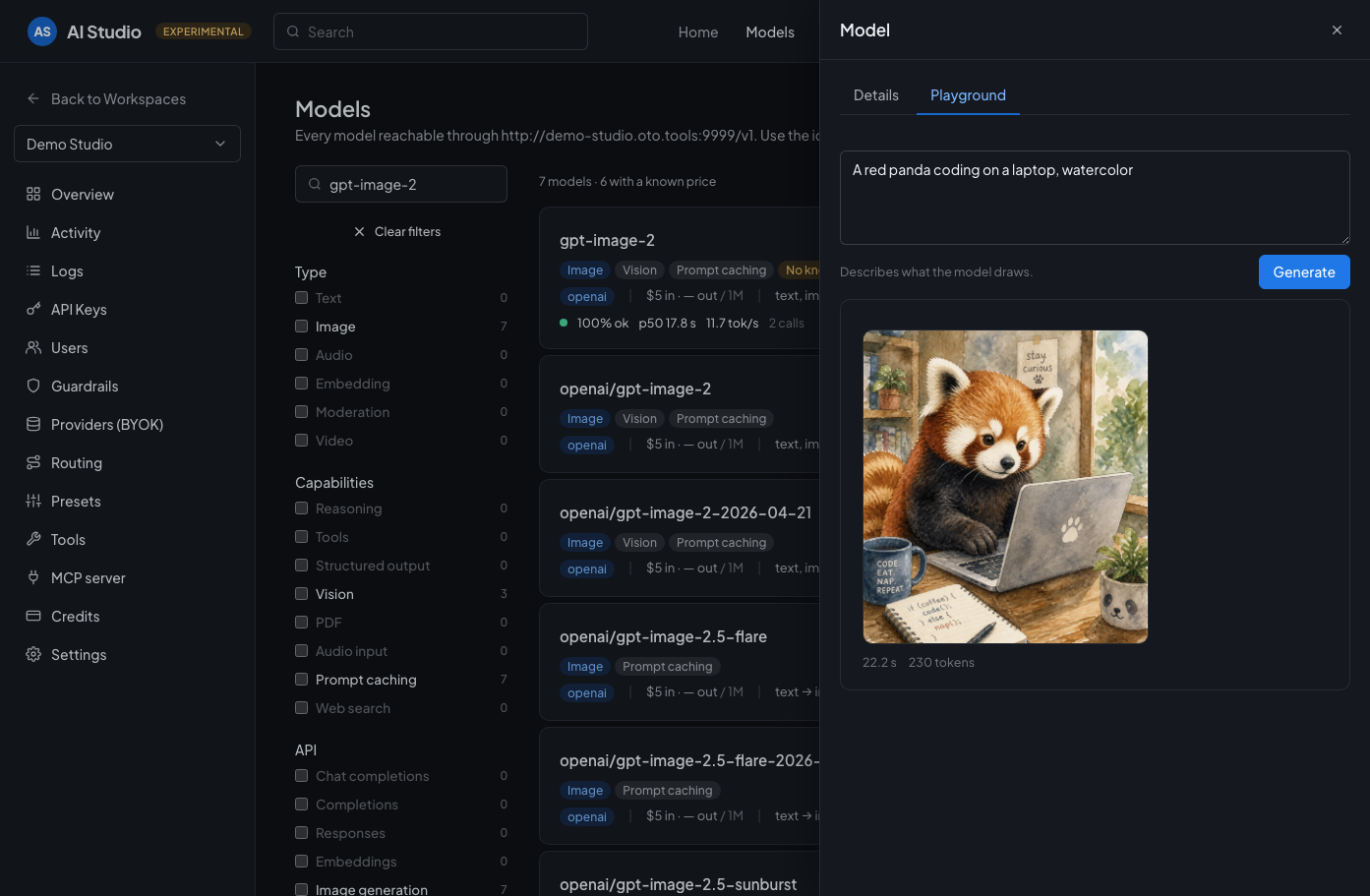
A model that does not chat is tried where it is listed: a prompt or a file in, what the model answers out.
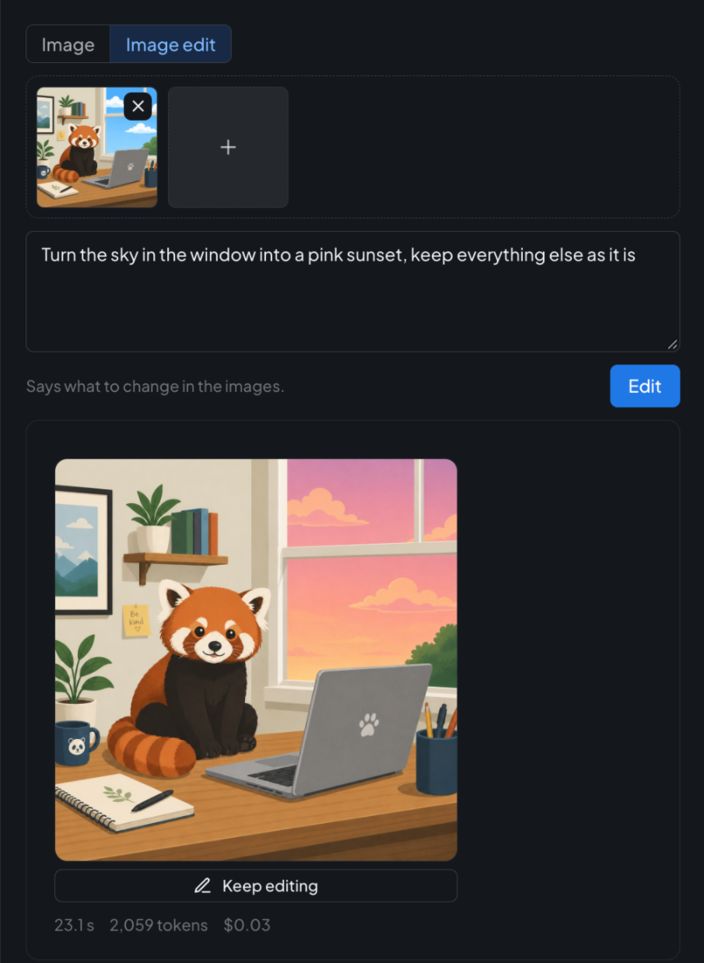
An image model that edits takes your pictures and a few words: the sky turns pink, the rest stays as it was. Keep editing sends the answer back in, to refine a picture step by step.
Text models have a playground too, on the Responses API: an input in, the answer out, with the summary of its reasoning when the model gives one. Every text model of the workspace answers there, whatever its provider, and so do the models OpenAI only serves on that API — the codex and pro ones — which the gateway always asks on the right endpoint.
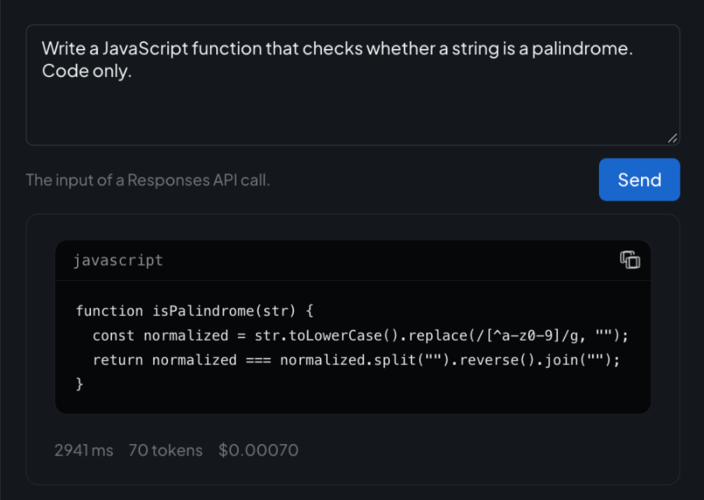
A codex model, only served on the Responses API, tried from its card like any other.
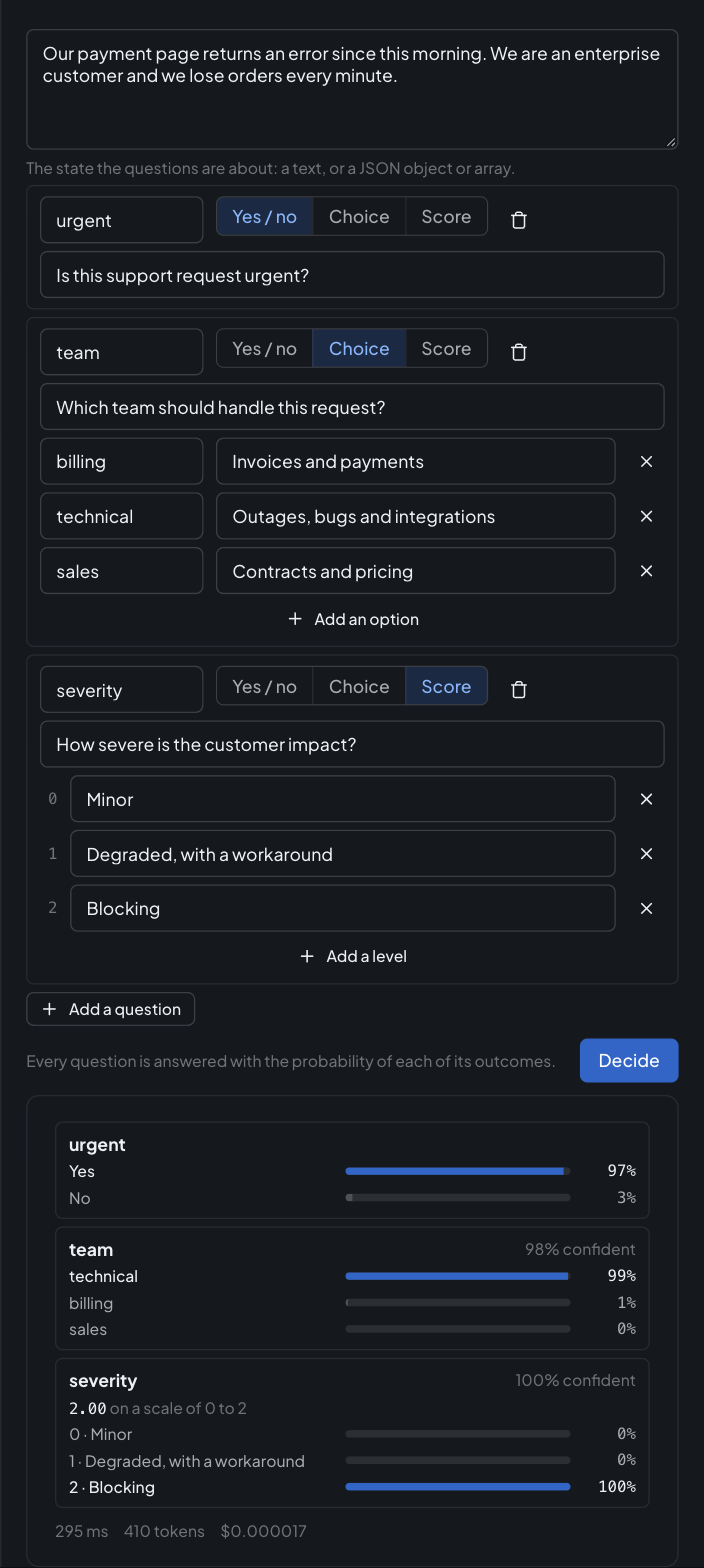
A decision model answers closed questions with probabilities: a yes/no, a choice among options, a score on a scale.
Chat with any model
Chat is a playground to try any model of the workspace, with streaming, reasoning display, presets and generation settings. Conversations are saved per user and per workspace. Each answer shows its model, tokens, latency and what the gateway billed for it, and the conversation keeps a running total, so you know what a prompt costs before it ships.
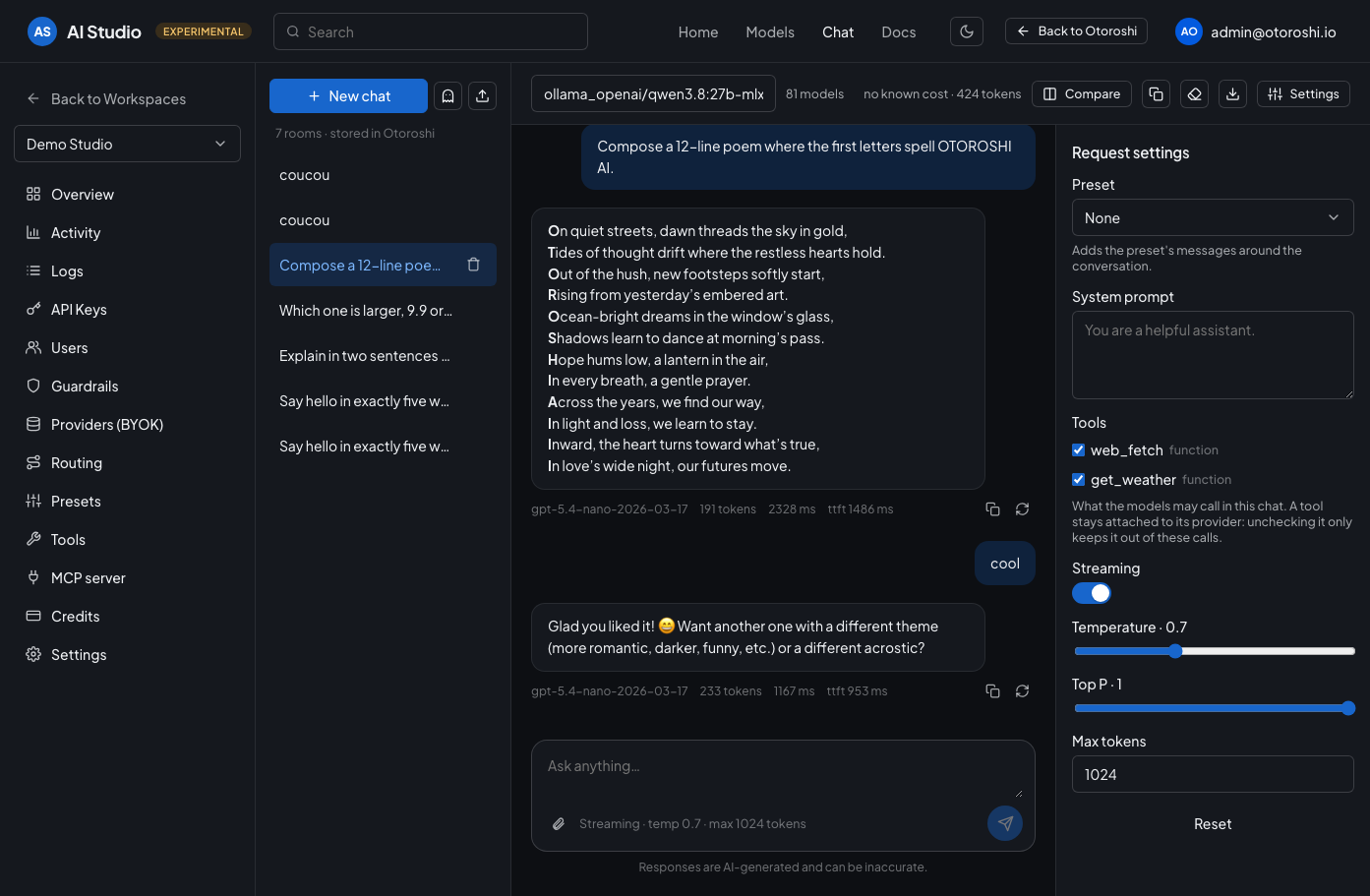
The chat: conversations on the left, the model picker on top, presets, system prompt and generation settings on the right.
Temperature, top P and max tokens are sent once you set them. Left alone, every model answers with its own defaults, reasoning models included, and one click brings a setting back to the default of the model.
Not convinced by an answer? Regenerate it, with the same model or with another one: every answer stays one click away, so you can flip between them and keep the best. Compare puts up to three models side by side: each question goes to all of them at once, each model keeps its own thread, and every column shows its answer, cost, latency and time to first token. Once you know which model fits, continue the conversation with that one only.
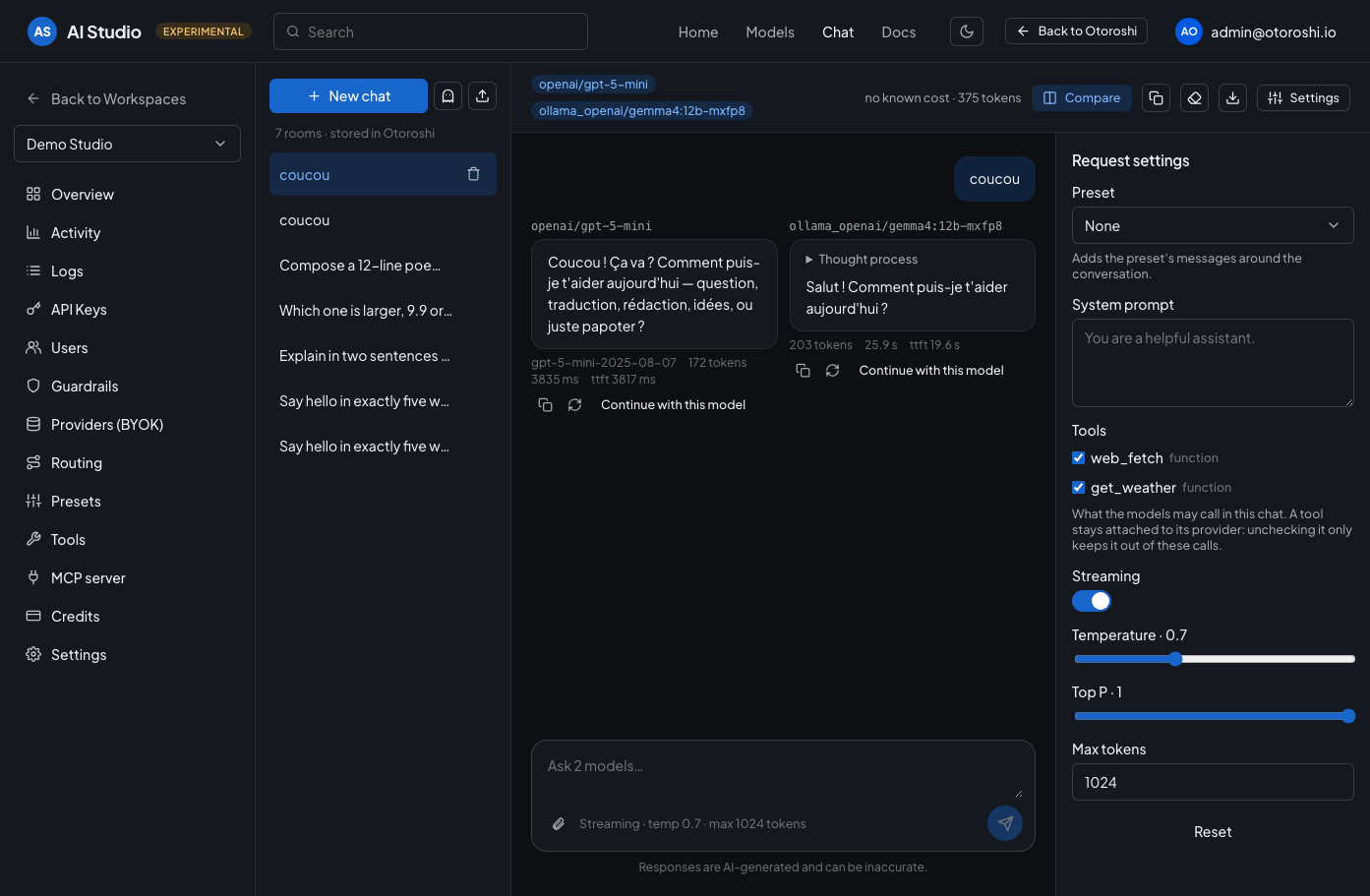
The same question to two models at once, each answering in its own column with what it cost and how fast it was.
Questions carry files: drop an image, a PDF or a text file in the composer, paste a screenshot, or pick them with the paperclip. Images are resized in the browser, so a conversation stays light, and only the models that read them are offered them: the paperclip says what the model of the moment takes. Text files work everywhere, they are sent as text. A model that draws answers with its images in the conversation, and the image models of the workspace are in the picker too: ask for a picture in the same place you ask for an answer, and save it in one click.
When your workspace gives models tools — HTTP or JavaScript functions, MCP connectors, web search — the request settings list them, and every conversation picks the ones it wants. Unchecking a tool keeps it out of these calls only: it stays attached to its provider for your applications. It is the fastest way to tell what a tool changes in an answer, or to keep a model from reaching for the web when you want what it knows.
Conversations are yours to shape:
- Duplicate a conversation to try another direction without losing the first one, or clear it to start over.
- Open a temporary chat that is never saved, for a quick test or a sensitive question. Its calls still count in the activity and the budgets.
- Export a conversation as JSON to import it again later, in another workspace or by a teammate, or as
Markdown to read or share it. Import also accepts the
messagesof an OpenAI chat request, to replay a prompt from your code, images and documents included.
The chat needs no API key: it runs as the signed-in backoffice user, with the same configuration as the workspace endpoint. Guardrails, fallbacks, routers, costs and analytics apply as they do for your applications, and so do the budgets of the workspace and the budgets of that user. What is checked at the door of the route for applications (API key, IP addresses, key quotas and key budgets) does not apply to the chat.
Call the API
API is the page your developers open first: everything the workspace endpoint serves, on one screen. The base URL, the header the API key goes in and a model id are there to copy, and every endpoint comes with what it is for, what a request can carry, and a snippet already filled with your base URL and one of your models — in curl, and in Python or TypeScript with the SDK that speaks that format.
| Family | Endpoints |
|---|---|
| Text | /chat/completions (OpenAI chat), /responses (OpenAI Responses), /messages (Anthropic, Claude Code included) |
| Embeddings | /embeddings |
| Images | /images/generations, /images/edits |
| Audio | /audio/speech, /audio/transcriptions, /audio/translations |
| Moderation | /moderations |
| Documents | /ocr |
| Decisions | /systemone (System One), /decisions (OpenAI) |
| Tools | /mcp |
| Discovery | /models, /contexts, /providers |
The page reads your workspace: an endpoint is shown with a model you actually have, and one that no provider serves yet tells which capability to turn on to open it. Each endpoint links to its section of the OpenAI Compatible API reference for the full request and response formats.
The quickstart of the home page offers the same snippets: pick what to call — a chat, an embedding, an image, a decision — and copy the code, or just the base URL.
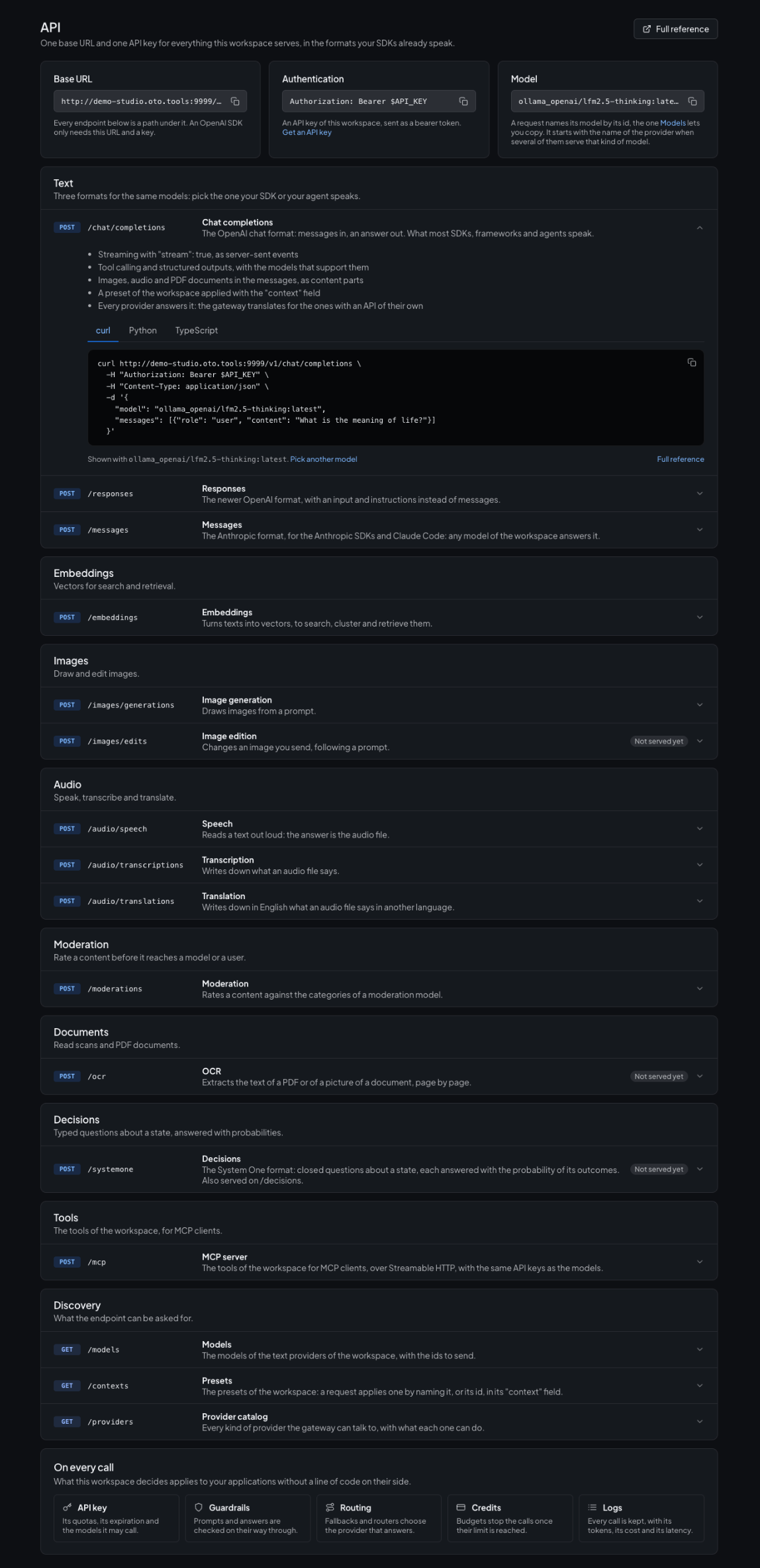
Everything the endpoint of the workspace serves, each call with what it can carry and a snippet to start from.
Manage API keys
Create keys for your applications, reveal and copy them, set per-key quotas and a credit limit, and jump to the activity of a single key.
Choose which models each key can call: every model of the workspace, a list picked from the models
the workspace serves, or your own rules, such as openai/.* to allow one provider or .*-preview to
block previews. A key cannot go beyond the model access of the workspace guardrails, and a call to any
other model is refused before it reaches a provider. Allow a load balancer or a router, and the key can
use it whatever target it picks.
Give a key an expiration date for a contractor, a demo or a proof of concept: from that date, the gateway refuses it, with no cleanup to remember. The list shows when each key expires and flags the ones about to. Extending an expired key brings it back. If a key leaks, Reset secret issues a new one in one click: the leaked key stops working within seconds, while the key keeps its name, owner, quotas, budgets and history.
Every key has an owner: yourself, a teammate, or the whole workspace. The usage of a key counts for its owner, so the activity of a person covers both their chats and the applications running with their keys. Workspace keys belong to no one in particular, which suits shared applications and agents.
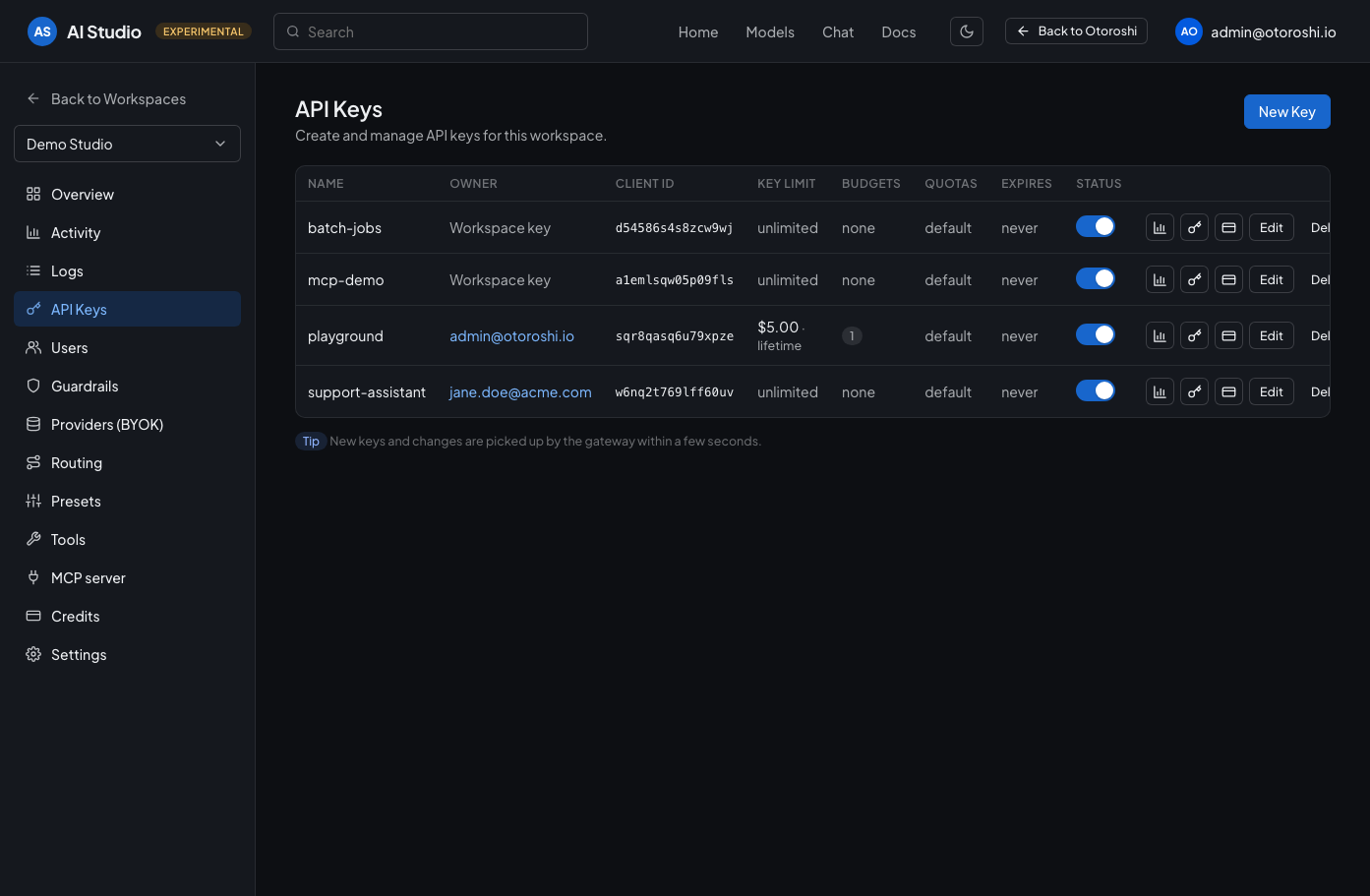
Each key with its credit limit, its budgets, its quotas and its expiration, and shortcuts to its activity and its budget.
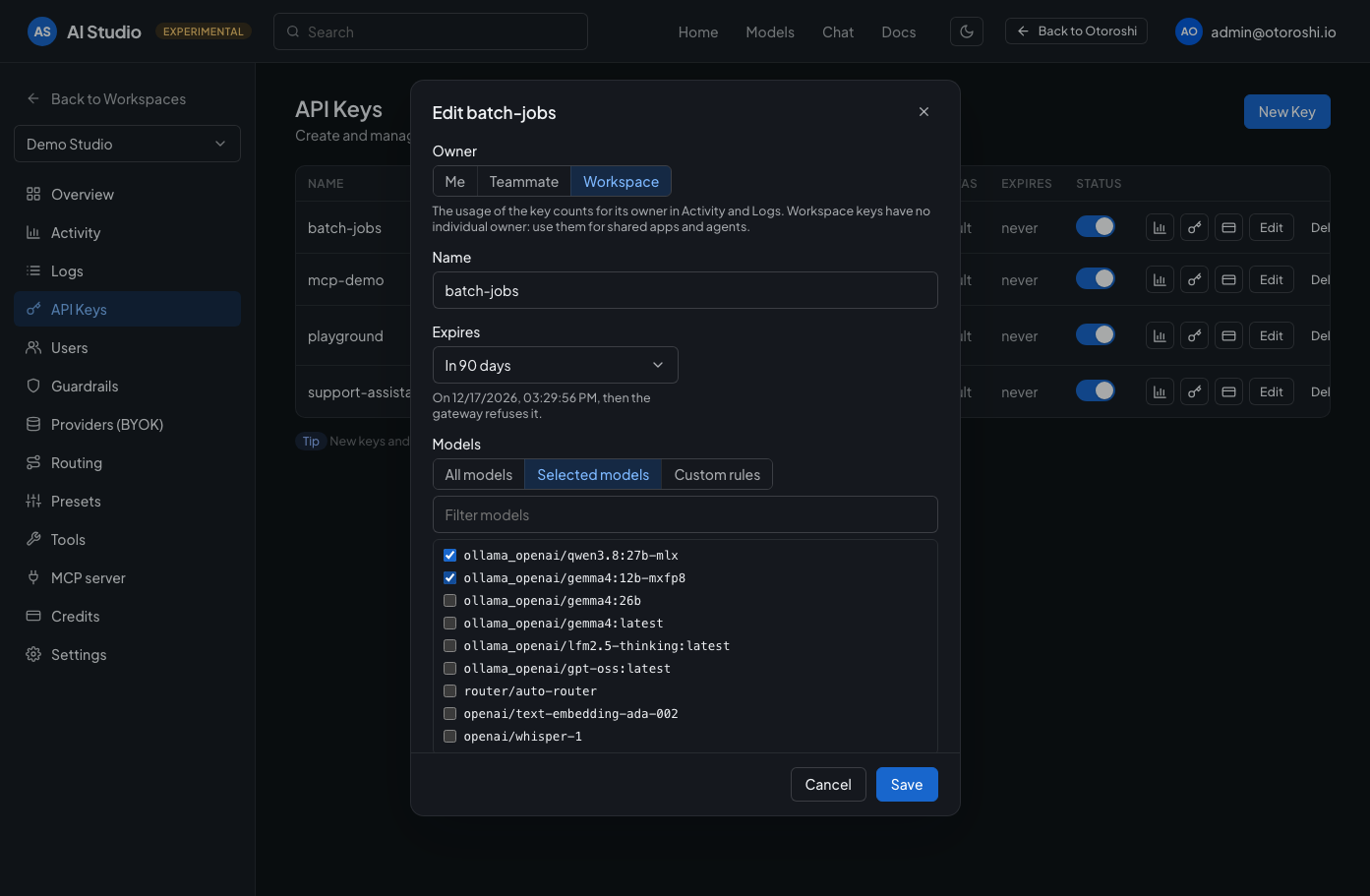
A key limited to two models and expiring in 90 days, with its own credit limit.
Route and protect
- Guardrails block or check prompts and answers (regex, moderation, prompt injection, secrets
leakage, and more) and restrict the models a workspace may call, one by one or a whole provider at
once (
openai/.*). A policy can be limited to some callers — an API key, a list of keys, the users of one email domain, a range of IPs — so the strict rules of one integration do not slow every other call down. - Routing sets fallbacks between providers, load balancers, Otoroshi routers and the default provider used when a request does not name one.
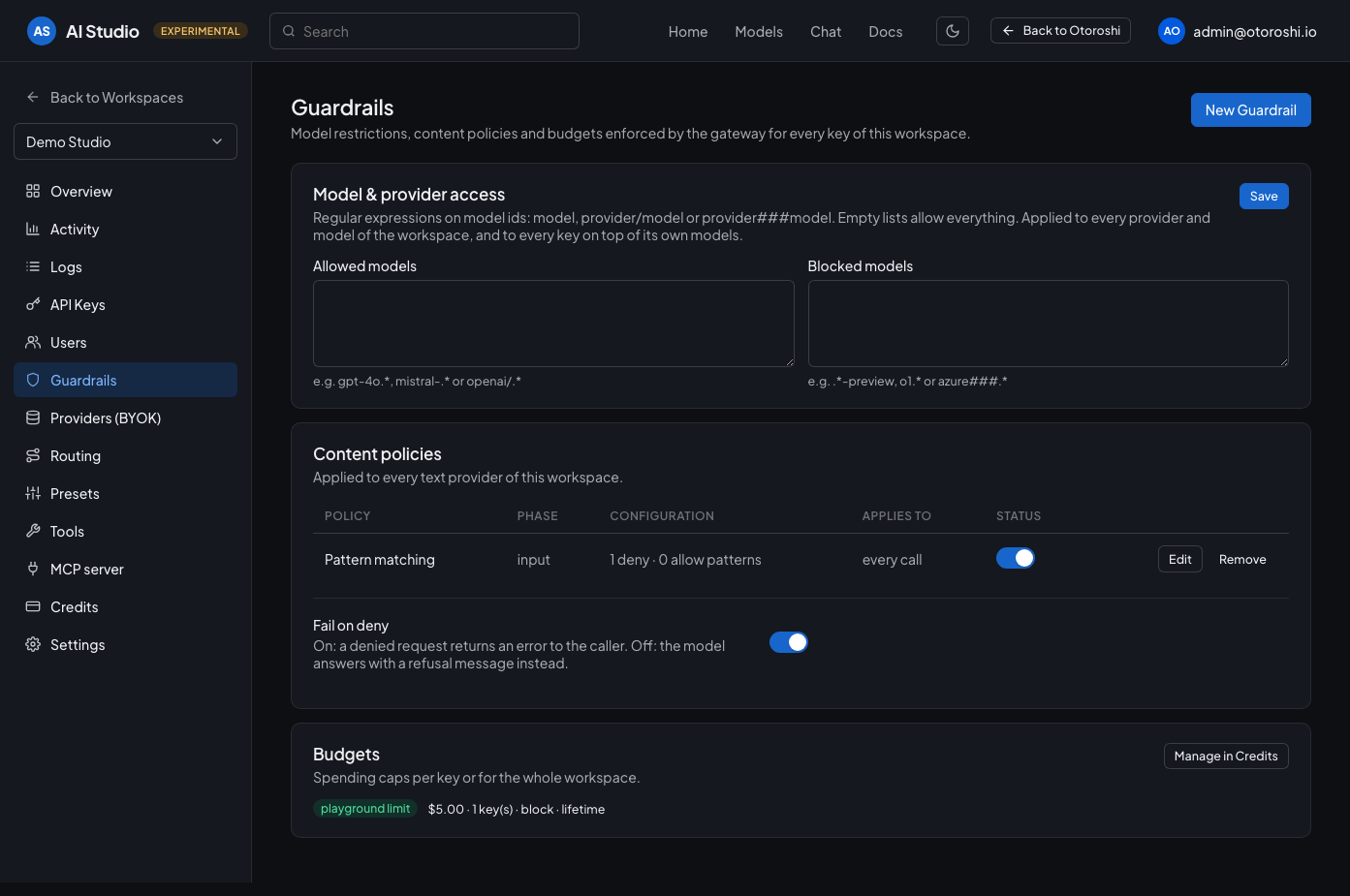
Model access rules and content policies, applied to every provider of the workspace.
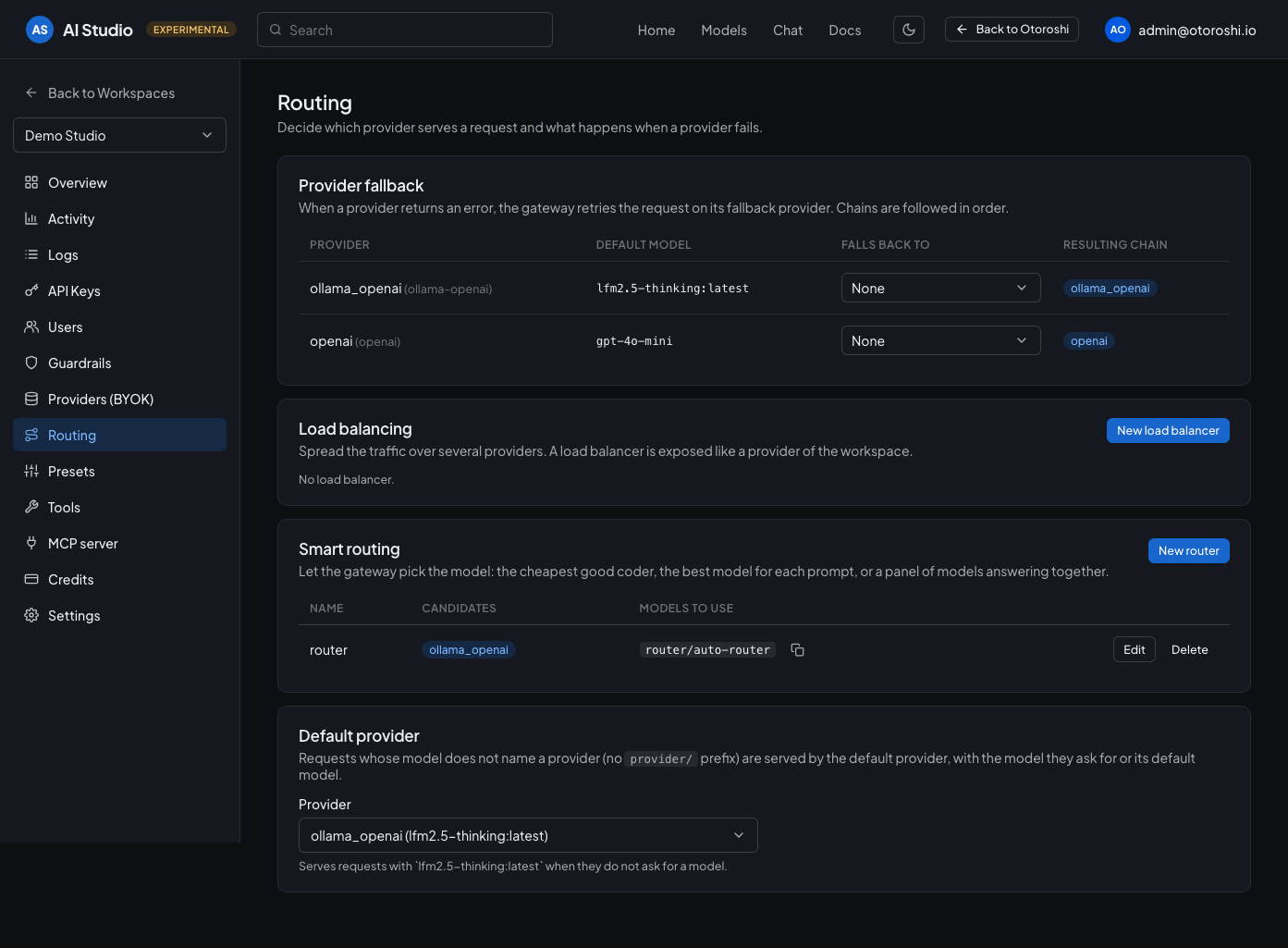
Fallback chains, load balancers, Otoroshi routers and the default provider of the workspace.
A router can leave the choice of the model to a decision model of the workspace. The smart router has it rate how demanding each request is, and answers with the cheapest model that is good enough for it. The intent router has it pick, among the candidates you described, the one that fits the request.
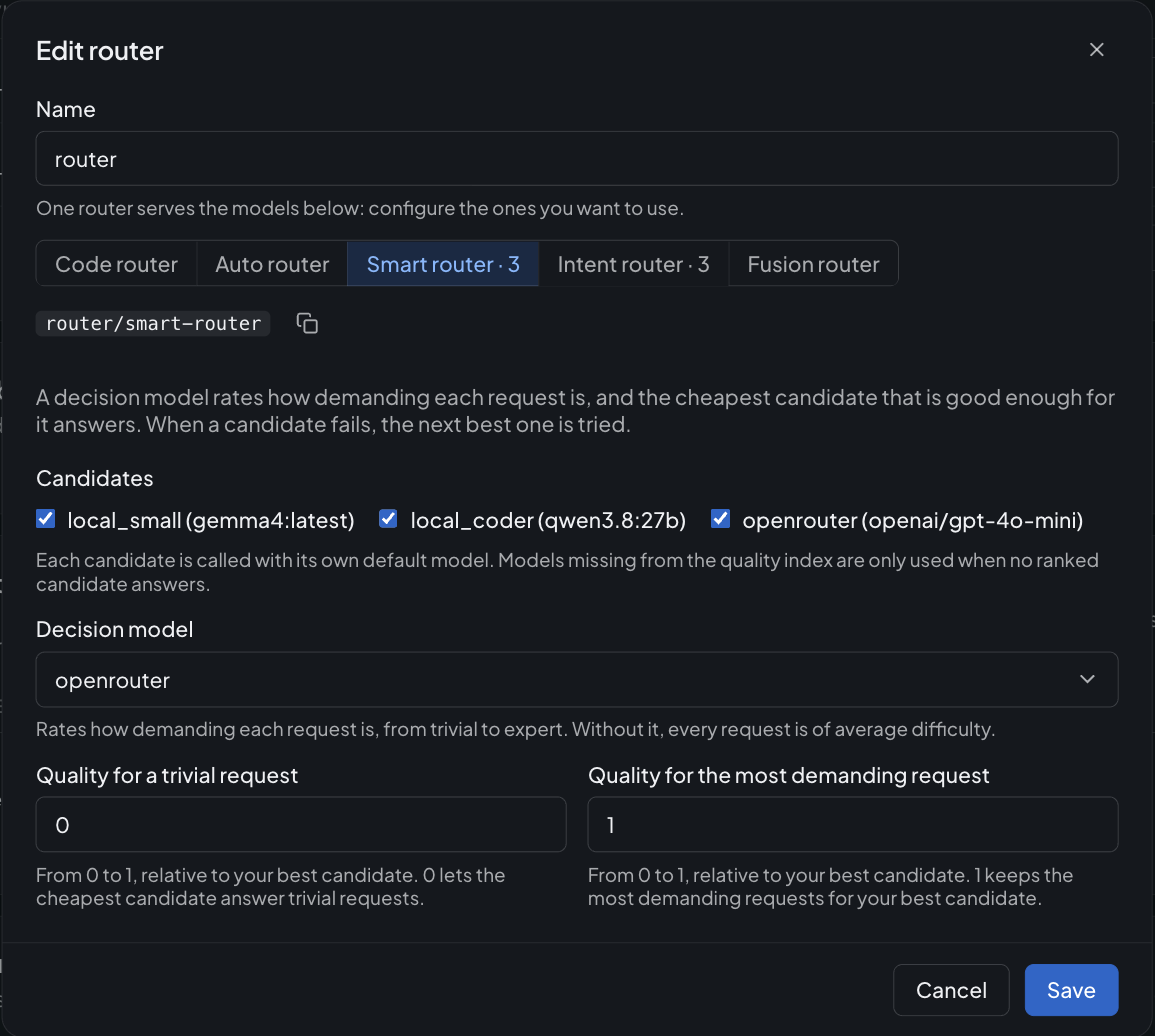
A smart router: trivial requests go to the cheapest candidate, the most demanding ones to the best.
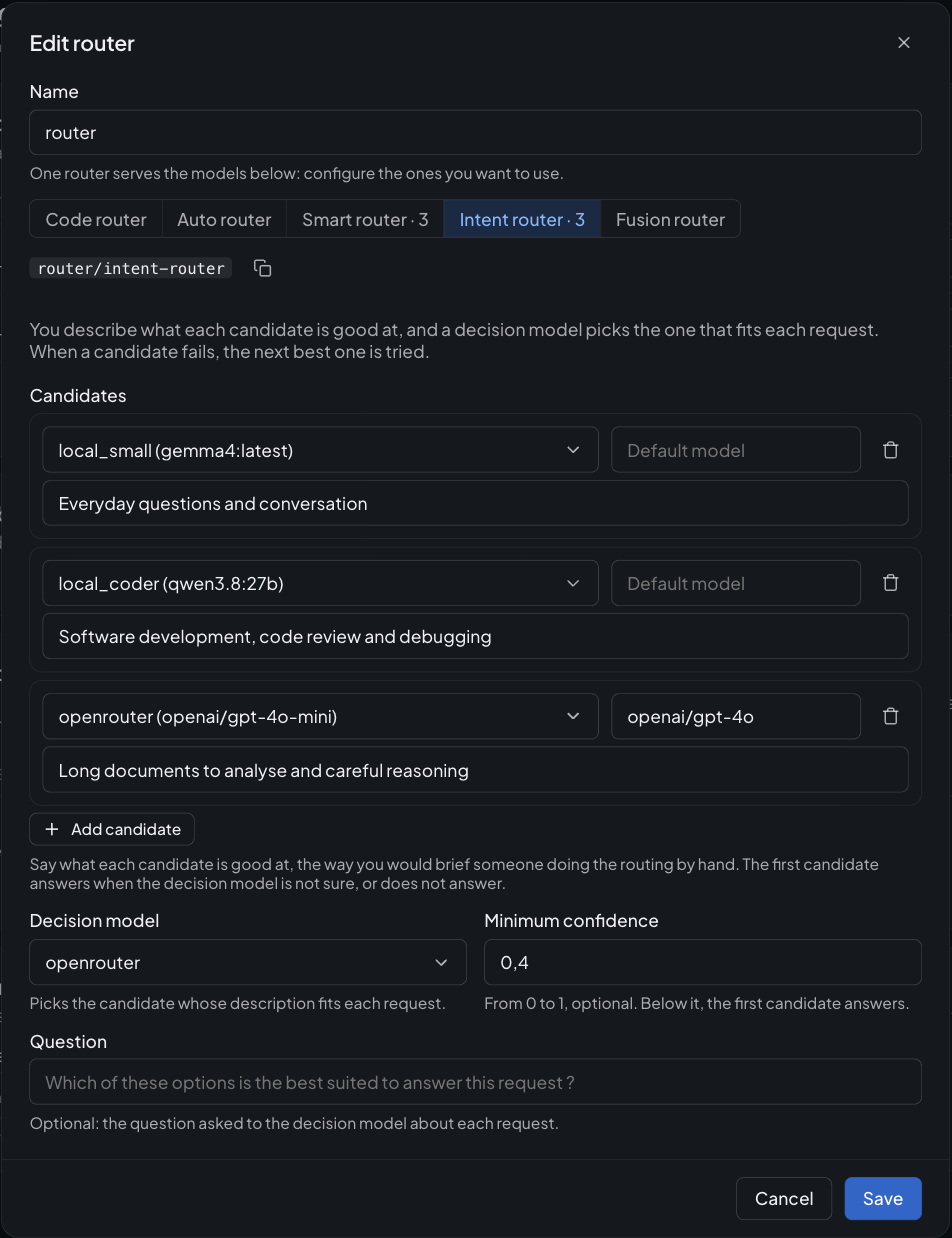
An intent router: you say what each candidate is good at, the decision model sends each request to the right one.
Give models tools and prompts
Presets are reusable system prompts. Pick one in the chat, or name it in the context field of a
request, and every call of the workspace starts from the same instructions.
Tools are what a model can call while it answers. Each tool is attached to the providers allowed to use it, so one workspace can offer different tools to different models. A new tool is offered to every provider, and a new provider to every tool: its Tools tab lists them all, checked, so the models you connect next can call what the others already do:
- HTTP functions — the model chooses the arguments, the gateway performs the request and feeds the
result back. Ready-made functions adds
web_fetchin one click: give the model a URL and it gets the page as markdown, pdf and images included. Any HTTP function can do the same with its Response as markdown option (see HTTP functions). - MCP connectors — remote MCP servers whose tools are exposed to the model. They are created on the stateless revision of the protocol (2026-07-28), where every request is self-contained: no session to keep alive, and any instance of the cluster can serve the next call.
- Web search — a search engine the model can query to ground its answers.
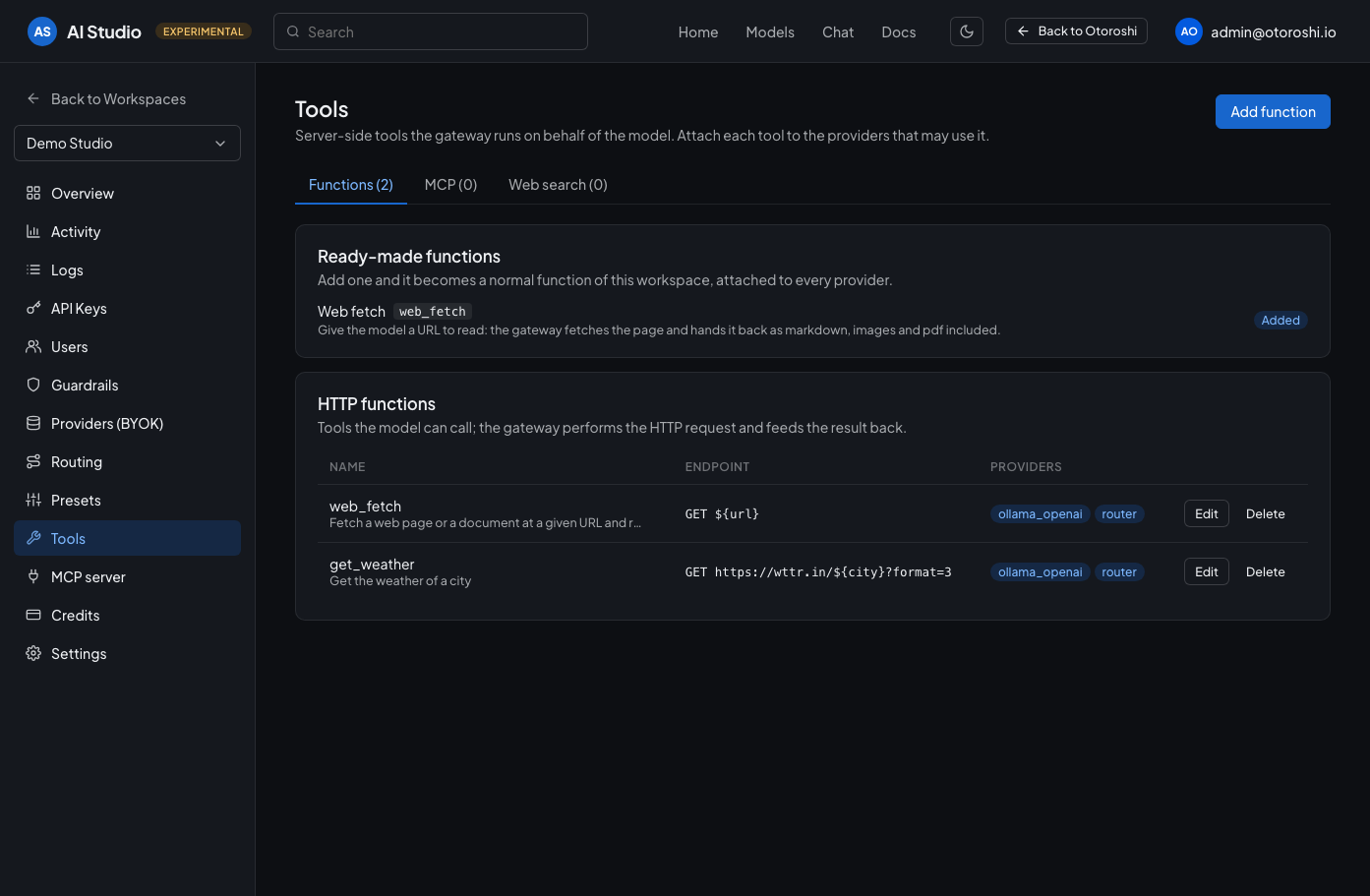
The tools the models of this workspace can call, and the ready-made ones a click away.
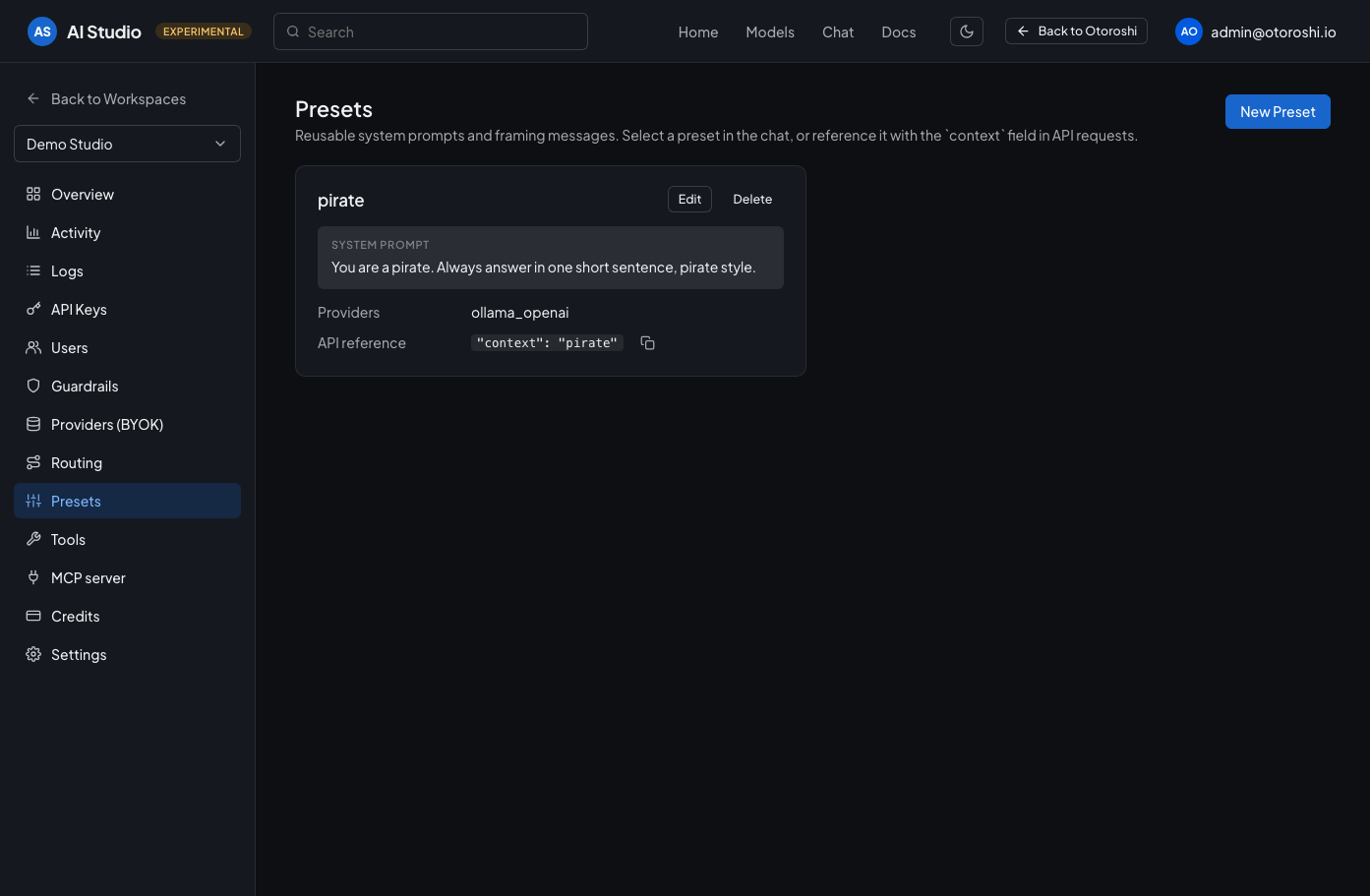
Reusable system prompts, selectable in the chat or with the context field of a request.
Serve your tools over MCP
A workspace can be an MCP server too. The tools it already has — its HTTP functions
and the remote MCP servers it connects to — are exposed to MCP clients (Claude, Cursor, your own agents) on
the /mcp path of the workspace endpoint: same URL as the models, same API keys, same budgets, same
activity.
MCP server picks what to expose and starts serving it; until then /mcp answers 404. Clients connect
over Streamable HTTP with a key of the workspace:
{
  "mcpServers": {
    "acme": {
      "type": "http",
      "url": "https://acme.<workspaces domain>/v1/mcp",
      "headers": { "Authorization": "Bearer <api key>" }
    }
  }
}
Because a tool call carries an API key, it counts for the owner of that key exactly like a model call: the MCP tab of Activity shows what was served, tool by tool, user by user and key by key.
Before handing the endpoint to a client, call the tools yourself: the Playground of the page lists what the server exposes, writes the arguments of a tool from its input schema, and shows what the tool answers — the very answer your agents will get, recorded in the MCP activity like any other call.
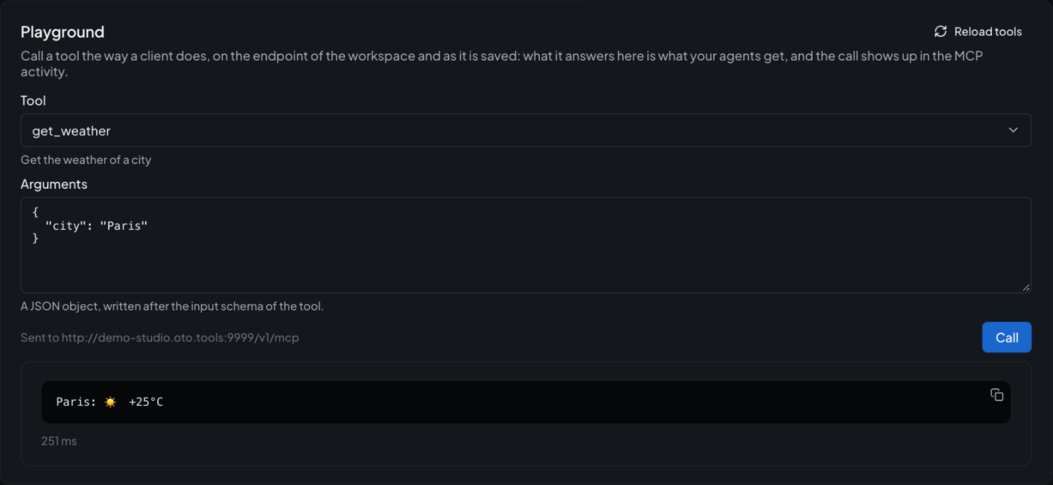
A tool called from the studio, on the endpoint MCP clients use.
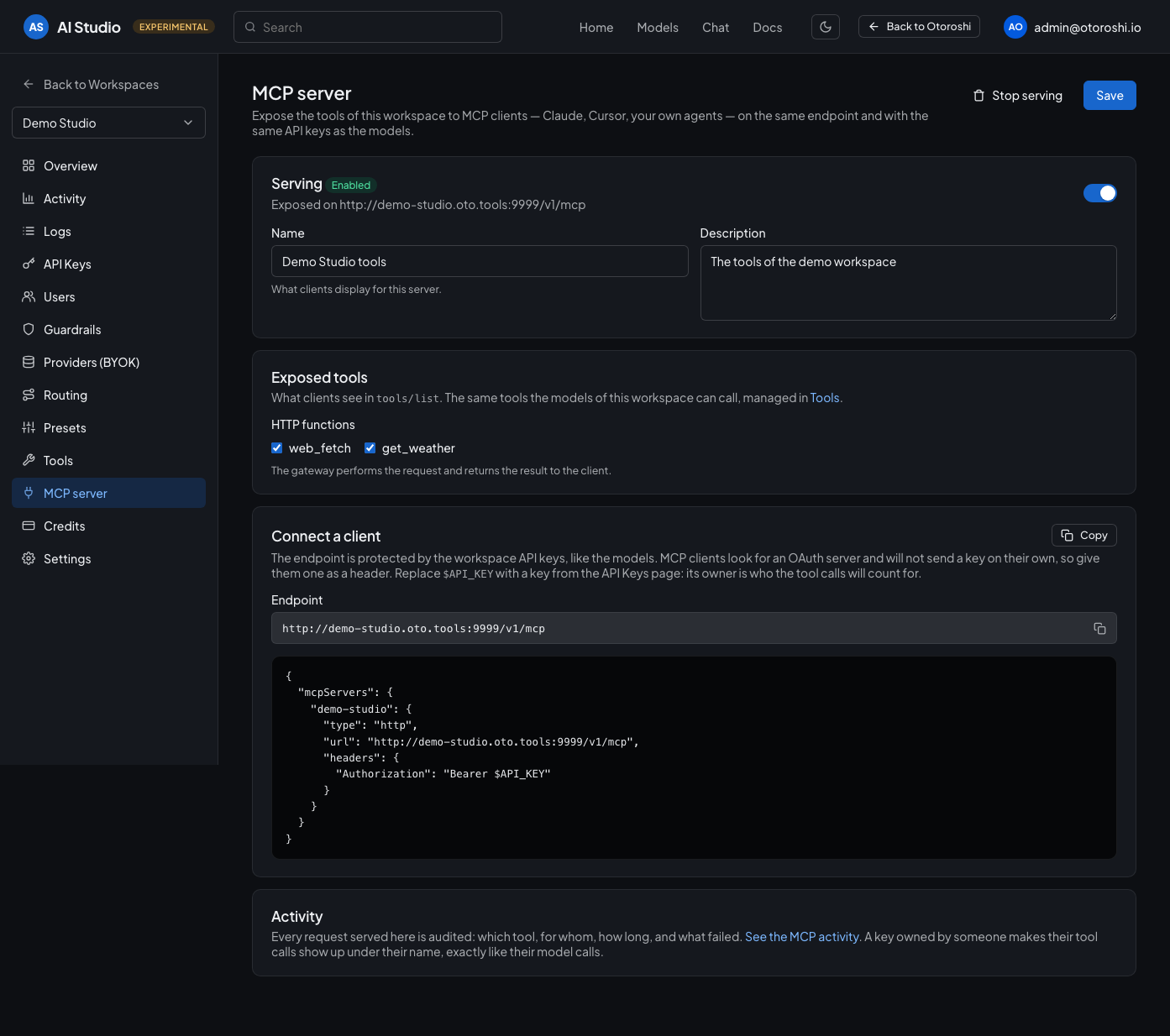
What the workspace exposes over MCP, and the client configuration to paste.
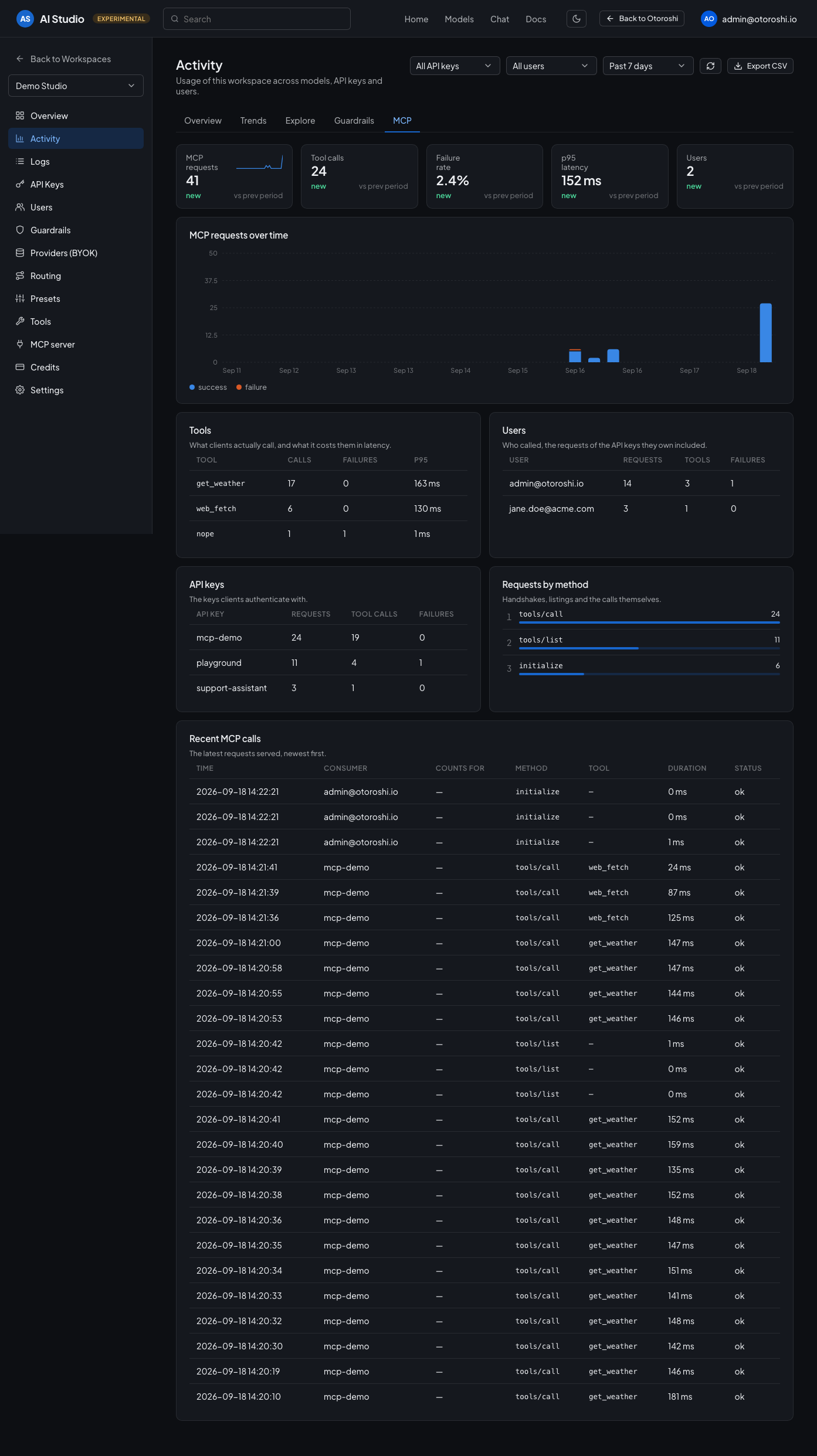
What the workspace served to MCP clients: tools, users, API keys and the latest calls.
MCP clients look for an OAuth authorization server (RFC 9728) and will not send an API key on their own, which is why the key is given as a header. For an MCP server protected by OAuth, expose the virtual server on a route of its own with the MCP exposition plugins — the studio creates an ordinary MCP virtual server, and everything the console offers (scopes, rate limits, zero-trust, registry publication) keeps working on it.
Control the spend
Credits creates budgets in dollars or tokens, per period, that block or alert when exceeded. A budget always applies to the calls of its workspace only, and can be narrowed to some API keys, some users, some models or extra conditions. A budget of a user covers their chats and the calls of the API keys they own, so one limit follows a person across every application they run. The Budget button of an API key creates a budget for that key in one step.
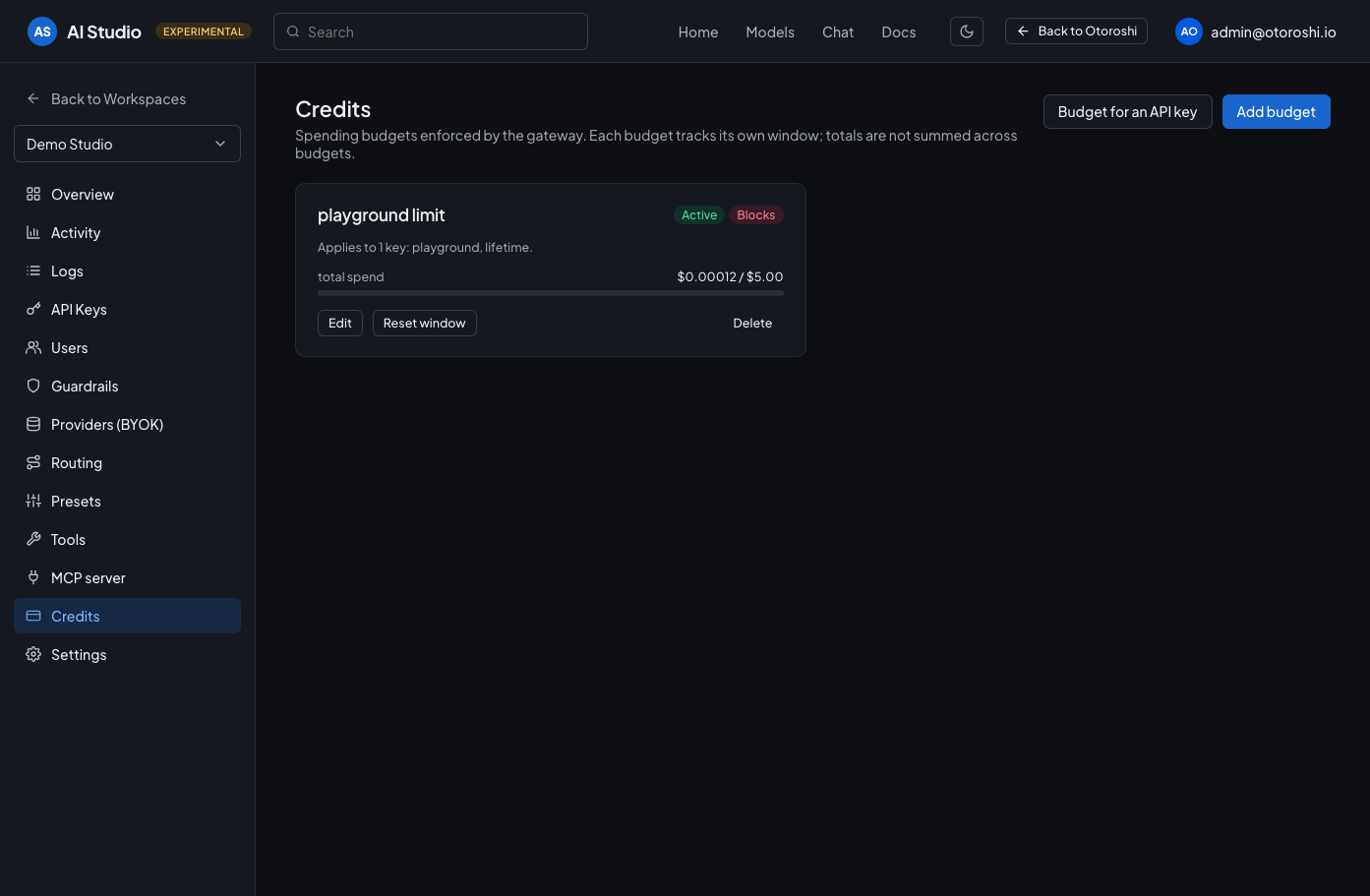
The budgets of the workspace with their live consumption.
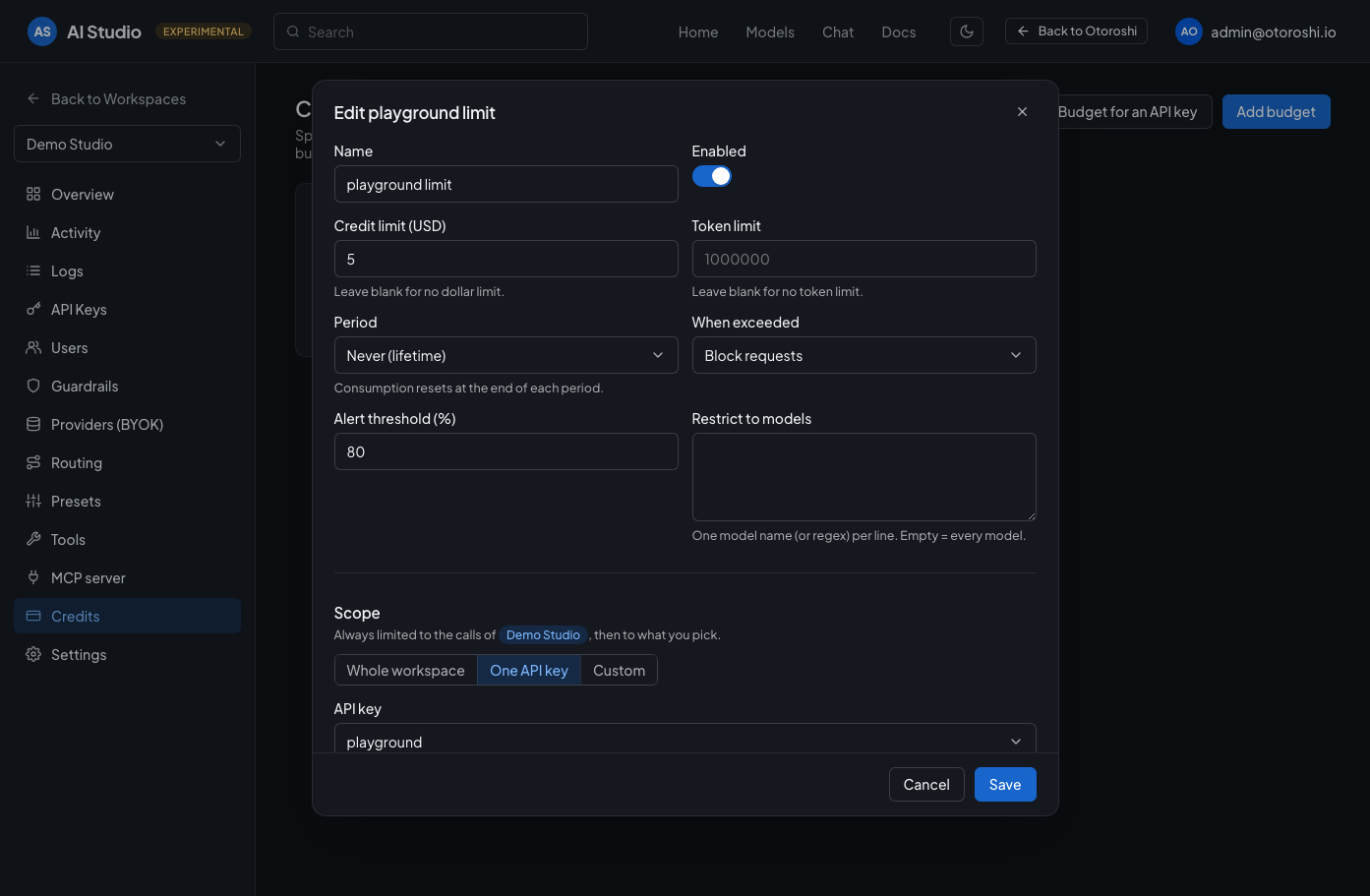
A budget is always limited to its workspace, then to the whole workspace, one API key, or a custom scope.
Follow the activity
Activity shows spend, requests, tokens, cache hit rate and latency, compared to the previous period, with the usage broken down by model, by API key and by user. Filter the whole page on one API key or one user from the selectors, or by clicking a row of the usage tables. The filters are part of the page URL, so a filtered view can be bookmarked and shared. The overview also estimates the environmental impact of the calls with EcoLogits: emissions, energy and water, their evolution, and the footprint of each model for the same amount of generated text. Export CSV hands the usage over to your spreadsheet or your chargeback: by model, by API key, by user, or hour by hour and day by day, for the period and the filters of the page.
- Trends puts side by side, for models, users, API keys and end users, how the spend, tokens or requests evolve and the biggest moves against the previous period, new comers included.
- Explore answers the questions the dashboards don't: pick a metric (spend, tokens, latency and time to first token percentiles, throughput, cache hit rate, error rate, truncated answers, emissions…), a dimension to break it down by (model, provider, API key, user, end user, session, finish reason, status…), optionally a second one, and see it as a ranking with its share of the total and its change against the previous period, or hour by hour, day by day, week by week or month by month.
- Guardrails counts the requests your guardrails blocked, their rate, when they happened, and which reasons, models, keys and users they concern.
- MCP covers what the workspace served to MCP clients: requests, tool calls, failure rate and latency, the tools actually called, and who called them. It only counts what the gateway served — the tools a model calls through a connector during a completion belong to the LLM side and stay out of these numbers.
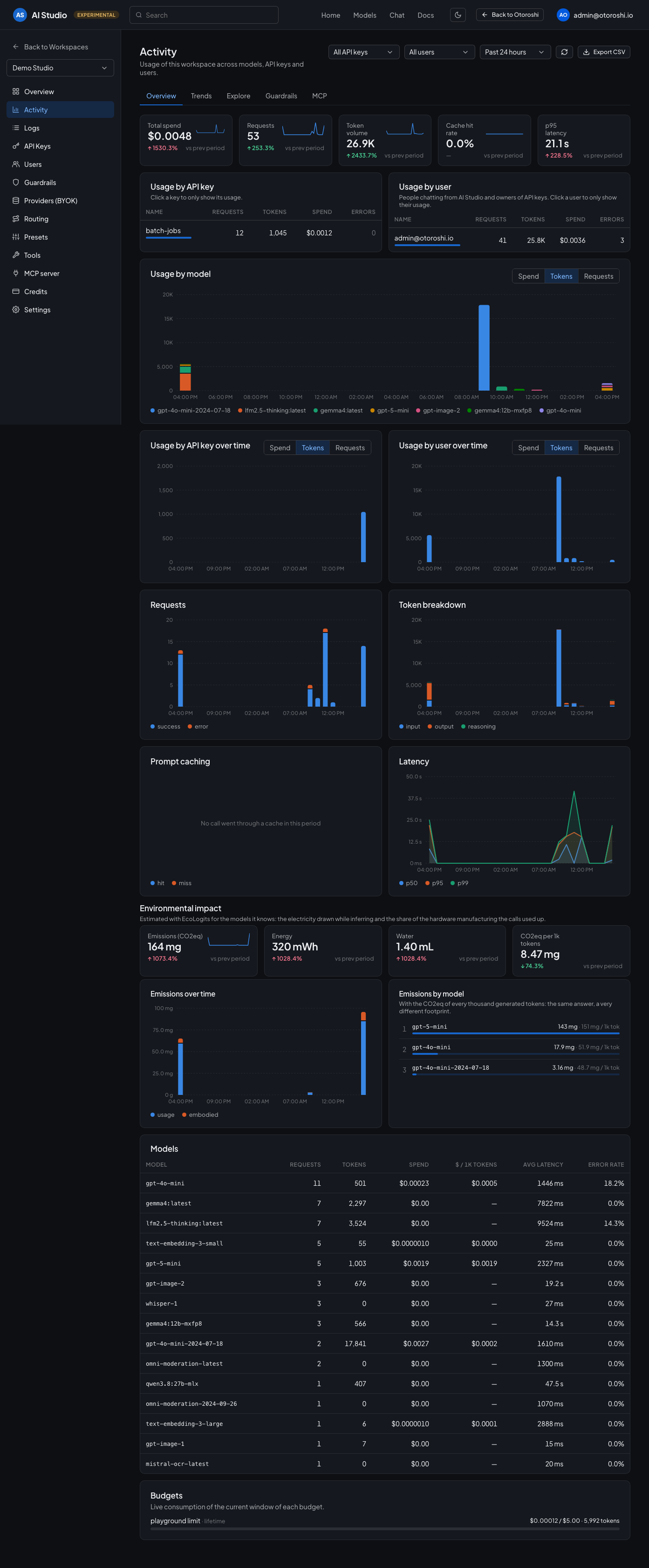
Spend, requests and tokens compared to the previous period, the usage by API key, by user and by model, and the live consumption of the budgets.
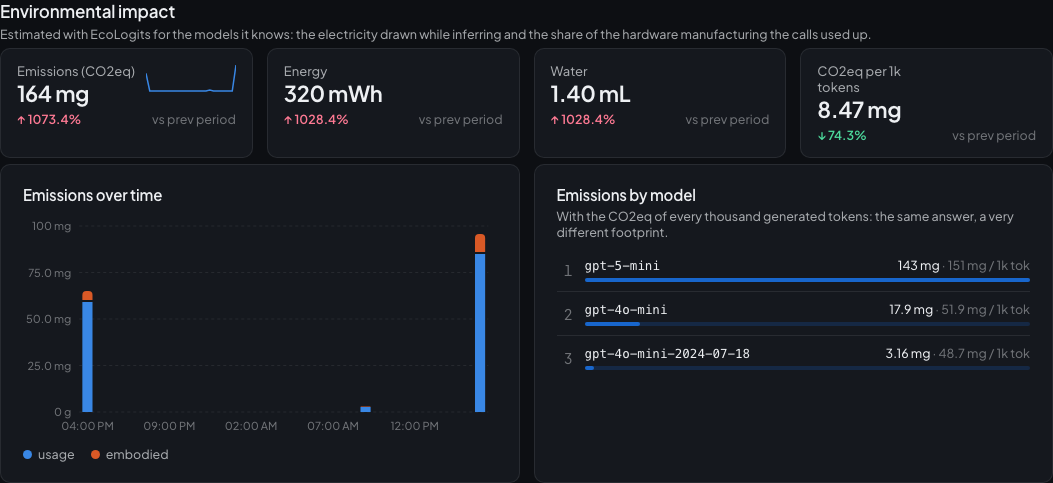
What the calls of the period drew and emitted, and which models cost the most for the same amount of generated text.
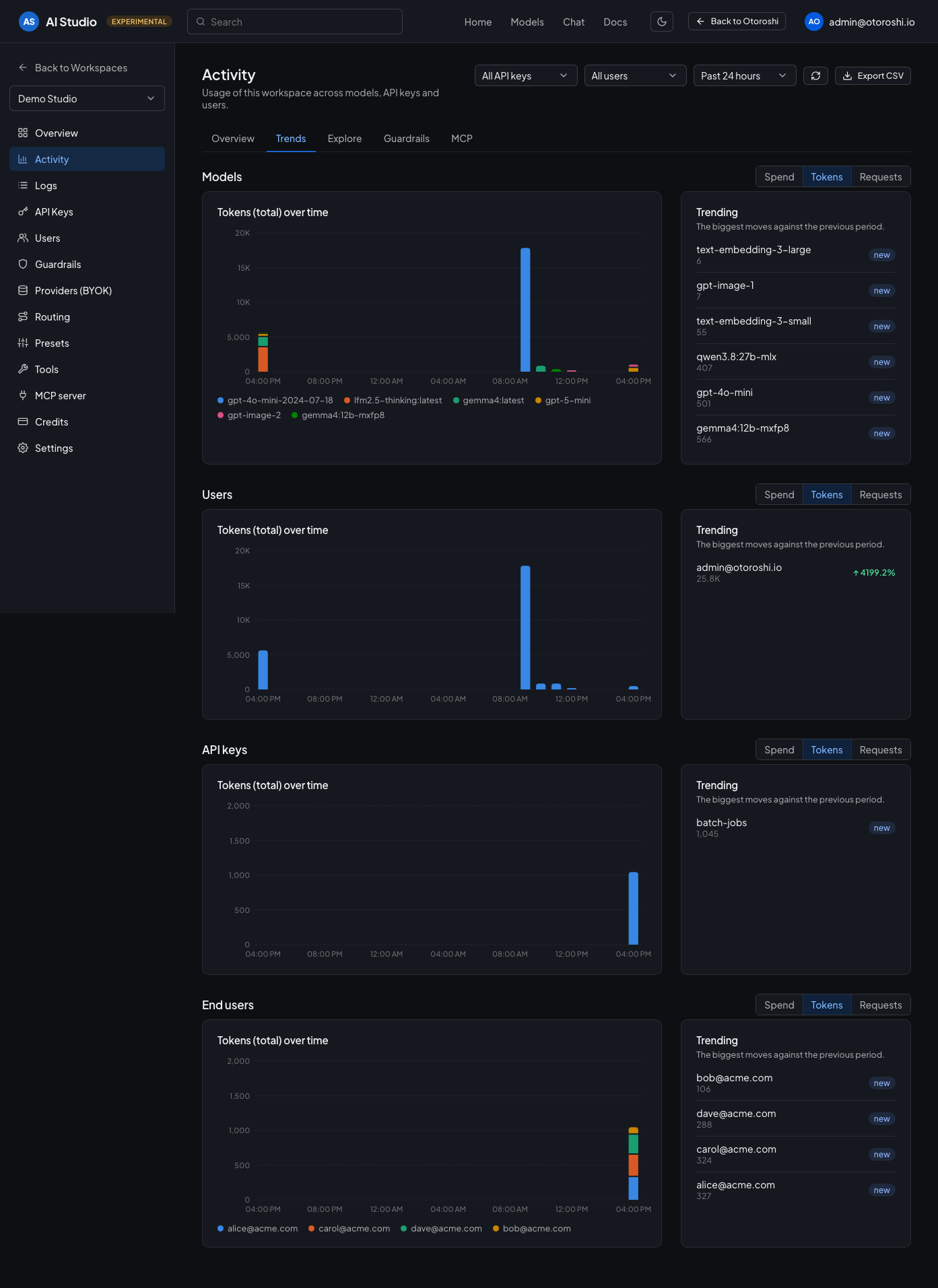
Who and what moved since the previous period, new comers included.
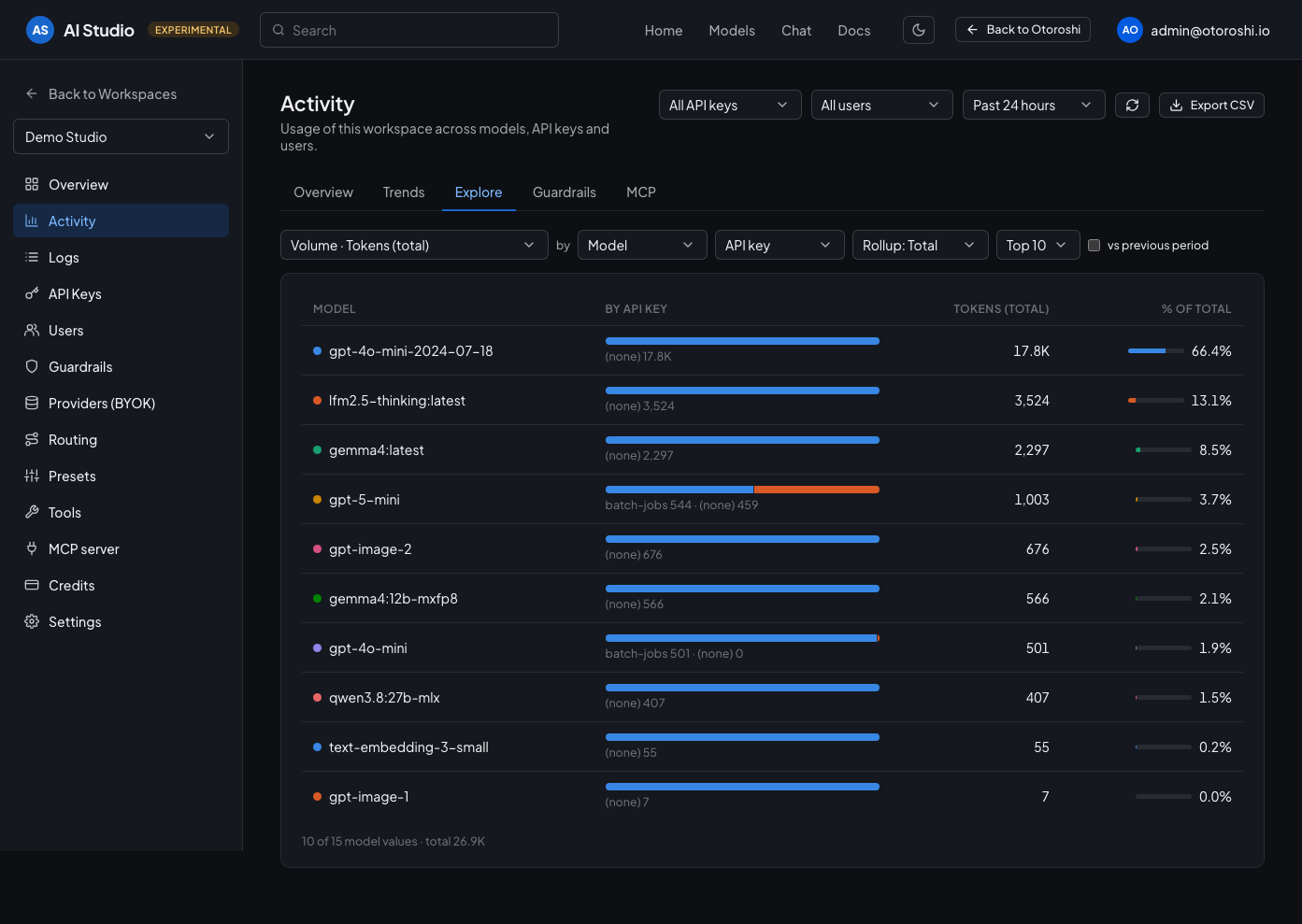
One metric, one or two dimensions, as a ranking or over time — the questions the dashboards don't answer.
Calls made from the studio chat are attributed to the person chatting. Calls made by your applications are attributed to their API key, and to the owner of that key. Filter on a user to see everything they consume, and on one of their keys to narrow it further.
Users lists the people using the workspace, whether they chat from the studio or run applications with the API keys they own. The profile of a user gathers their spend, tokens and requests by model, a year of daily activity, the keys they own and the budgets that apply to them. Your own profile is one click away from your name in the top bar.
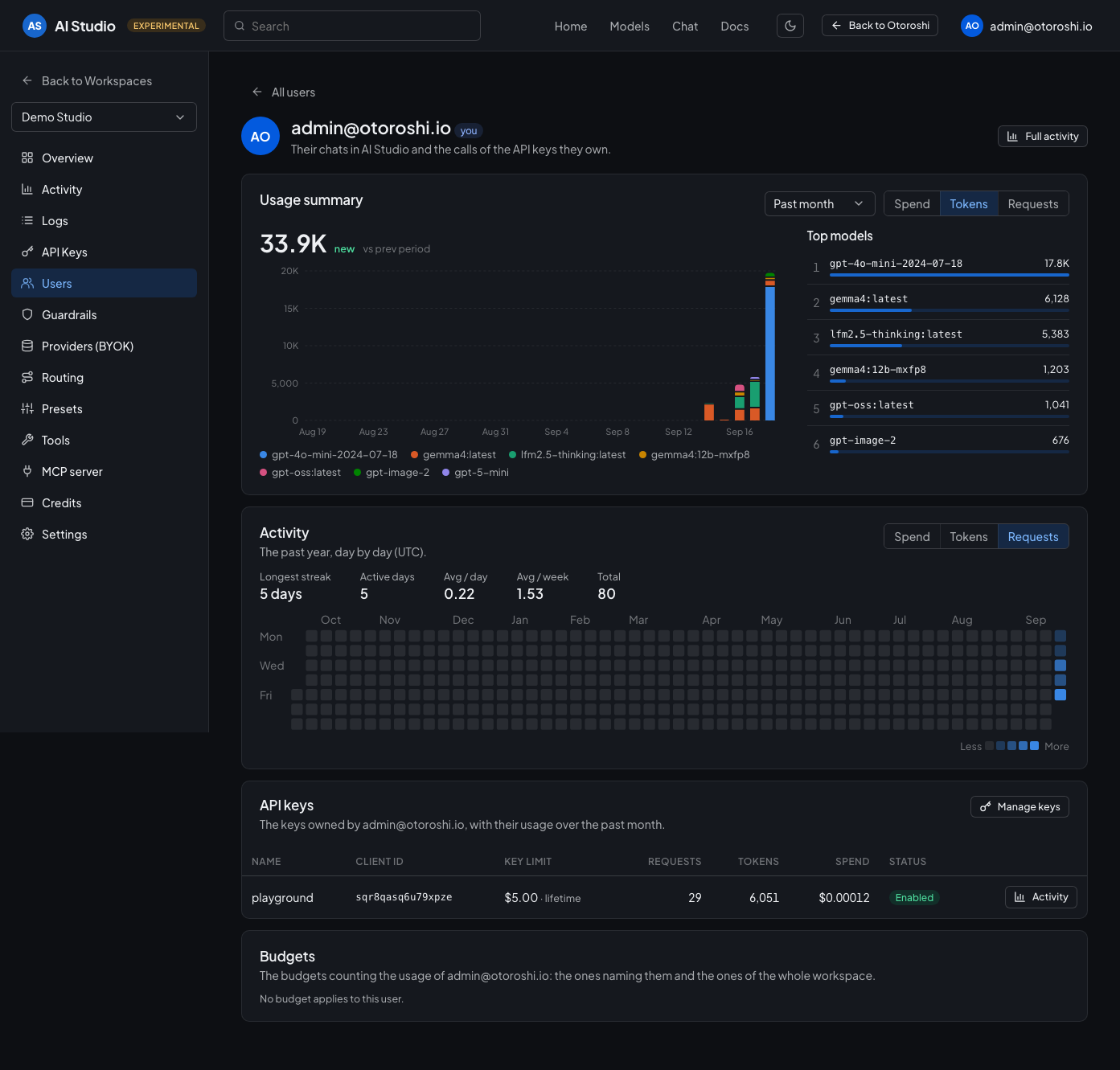
Everything one person consumes, their own chats and the applications running with their keys.
Logs lists every call, newest first, with its model, user, API key, tokens, cost, speed, latency, finish reason and status. Pick the columns you care about, filter by model, key, user, status or finish reason, and share a filtered view or a single call with its link. Export CSV downloads the calls matching the filters, up to the 10,000 most recent, with every recorded field. Only metadata is recorded: prompts and answers are never stored.
The details of a call show how long the answer took and how long the first token made the caller wait, why it
ended (a clean stop, an answer cut by length, tool_calls, a content_filter), who it counts for, down to
the end user of the calling application, and the cost breakdown. When serving a request took several model
calls (a guardrail, a failed attempt before a fallback, a router), they are laid out on one timeline.
The Sessions tab groups the calls of a conversation or an agent run: send the same id in the
x-session-id header, or in a session_id field of the body, with each call. The studio chat sends one per
conversation. The end user comes from the standard user field of the request.
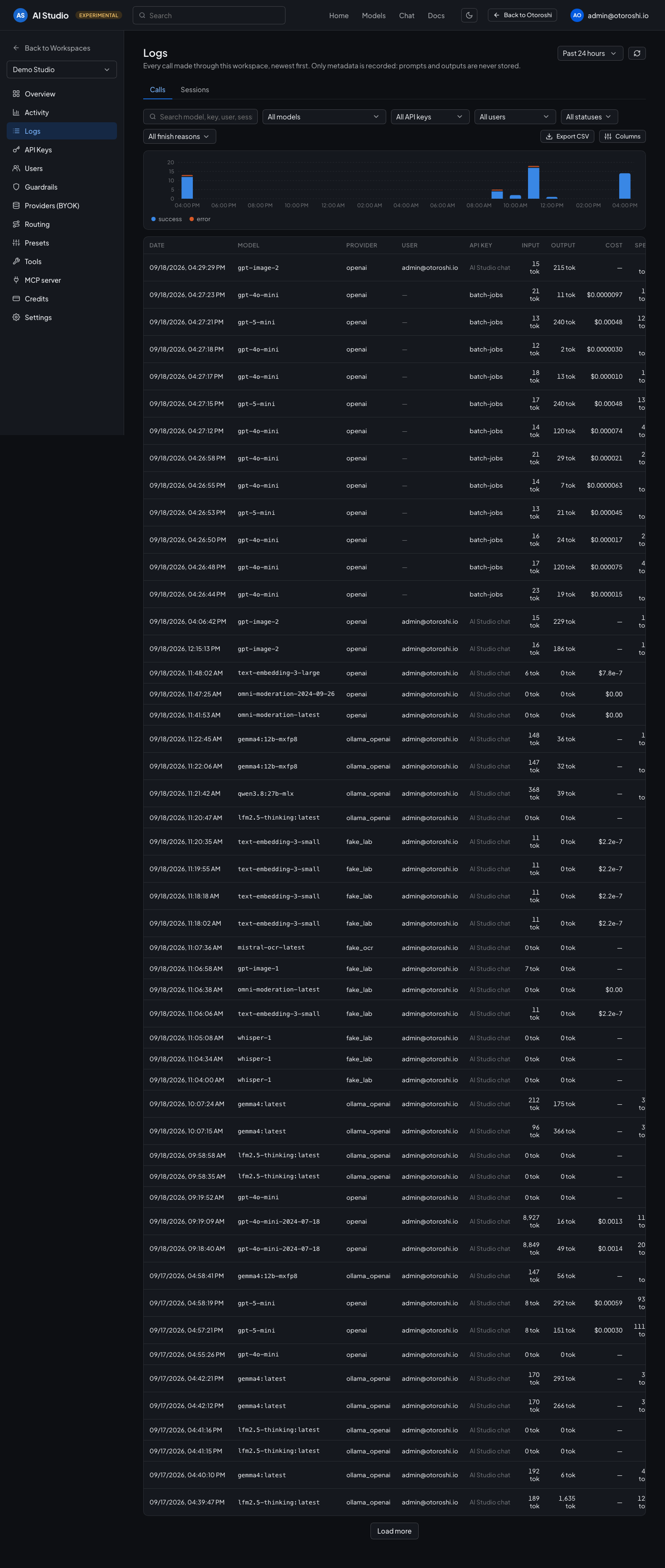
Every call, filterable by model, API key, status and text. Click a call to see all its details.
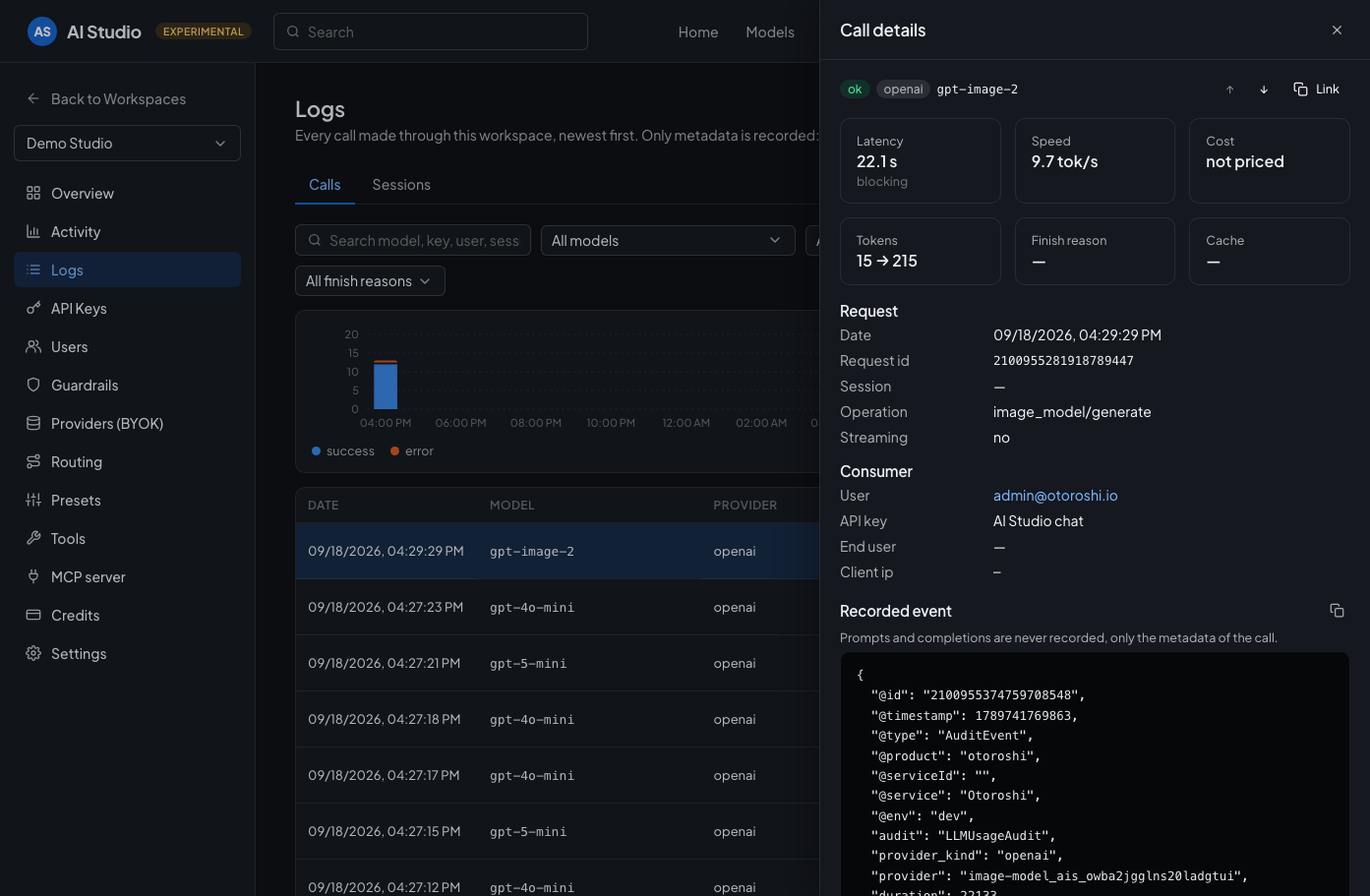
A single call: how long it took, why it ended, who it counts for, and the model calls behind the request.
Activity and logs read the Otoroshi user analytics database: they need an active User Analytics (PostgreSQL) data exporter (see prerequisites). Budgets consumption is live and works without it.
Workspace settings
Settings changes the name and the description of the workspace, enables or disables it, and sets its subdomain. It also holds the gateway settings of the workspace endpoint (timeouts, maximum upload size, image decoding), the IP addresses allowed or blocked for applications, and the deletion of the workspace. Technical details shows the ids of the route and the team of the workspace, with a link to open the route in the backoffice.
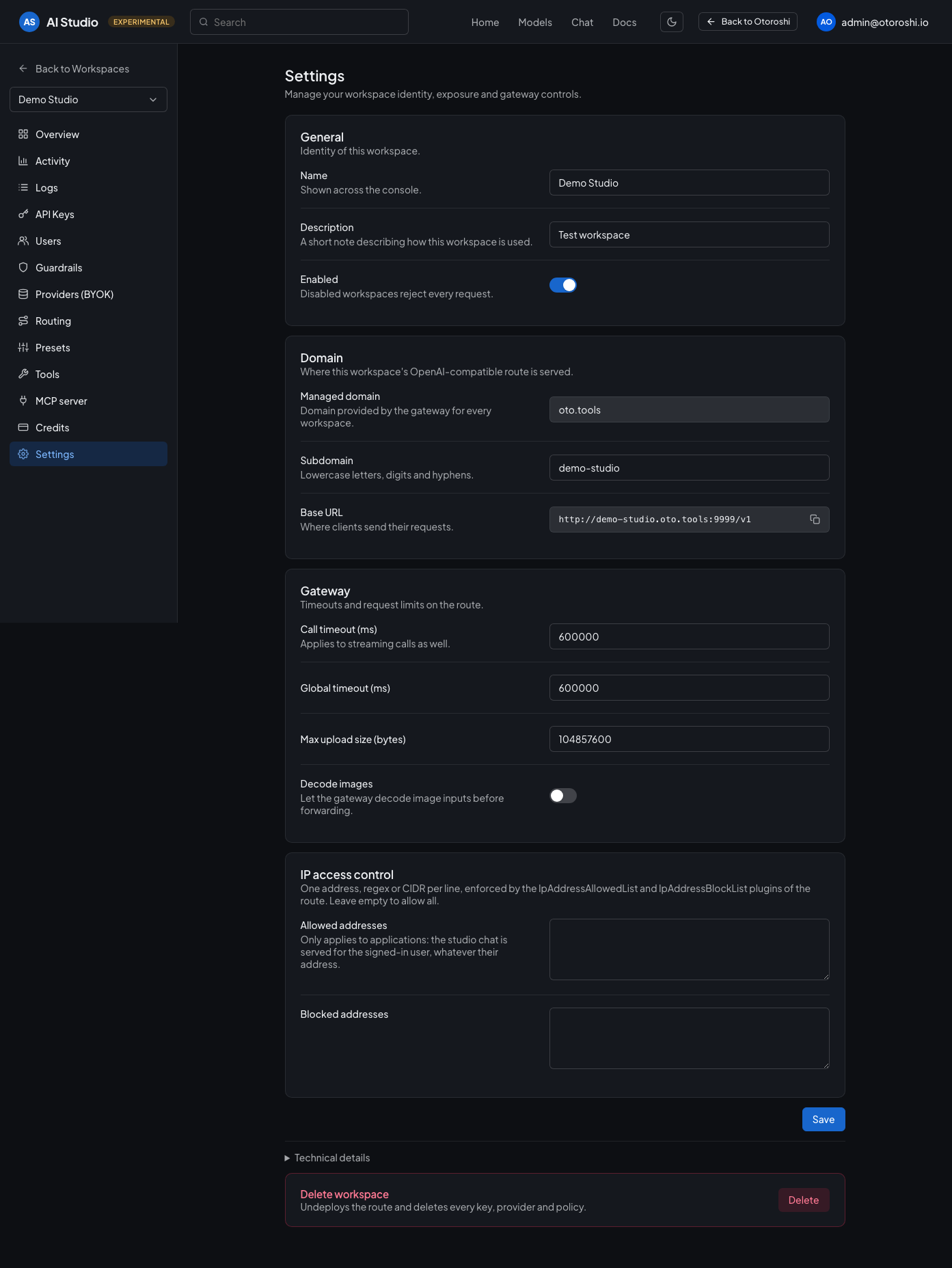
The settings of a workspace.
Automate with the admin API
Everything you do in a workspace can also be scripted with the AI Studio admin API: provision a workspace per team from your onboarding pipeline, connect providers from your CI, hand out API keys with a credit limit from your developer portal. The API speaks the same language as the studio (providers, capabilities, credits, presets…) and produces exactly the same entities, so a workspace created by script opens in the studio as if you had created it by hand, and the other way around.
The API is served by the Otoroshi admin API under
/api/extensions/cloud-apim/extensions/ai-extension/studio and uses the same credentials. Every change is
recorded in the Otoroshi audit trail.
export OTO_API='https://otoroshi-api.oto.tools/api/extensions/cloud-apim/extensions/ai-extension/studio'
export OTO_AUTH='admin-api-apikey-id:admin-api-apikey-secret'

# create a workspace, exposed on https://support-bot.<workspaces domain>/v1
curl -u $OTO_AUTH -X POST "$OTO_API/workspaces" -H 'Content-Type: application/json' \
  -d '{ "name": "Support bot", "description": "The assistant of the support team" }'

# connect OpenAI with text and embeddings
curl -u $OTO_AUTH -X POST "$OTO_API/workspaces/<workspace id>/providers" -H 'Content-Type: application/json' \
  -d '{ "kind": "openai", "token": "sk-...", "modalities": { "text": { "model": "gpt-4o-mini" }, "embedding": {} } }'

# create an API key with a monthly credit of $50, the response contains its bearer token
curl -u $OTO_AUTH -X POST "$OTO_API/workspaces/<workspace id>/apikeys" -H 'Content-Type: application/json' \
  -d '{ "name": "support-app", "credit_limit": { "usd": 50, "period": "monthly" } }'
When a request omits a field of an existing object, its current value is kept, so PUT and PATCH can
send only what changes. Fields left out at creation get the same defaults as in the studio (suggested
models from the catalog, workspace quotas, every provider selected for a preset or a tool, and so on).
| Endpoint | Description |
|---|---|
GET /catalog | The providers you can connect, with their capabilities, suggested models, connection fields and insights: OpenAI compatibility, and the number of known models by type, with reasoning, tools, vision or a known price, the price range and the largest context. |
GET POST /workspaces | List or create workspaces (name, description, slug). The Otoroshi-Tenant header sets the tenant of a new workspace. |
GET PUT PATCH DELETE /workspaces/:id | Read, update or delete a workspace: name, description, enabled, slug, call_timeout, global_timeout, max_size_upload, decode_images, allowed_ip_addresses, blocked_ip_addresses. Deleting a workspace deletes all of its entities. |
GET /workspaces/:id/models | Every model reachable through the workspace endpoint, with the id to use in requests and its metadata: the same types, cost, API, capabilities, limits and prices as the enriched models of the unified API (?force=true refreshes the lists of models). |
GET POST /workspaces/:id/providers | List or connect providers: kind, name, token, base_url, timeout, enabled, require_known_costs (refuse and hide the models the gateway cannot bill), fields, modalities (text, embedding, image, audio, moderation, ocr, video, decision, each with enabled, model, and stt_model for audio) and tools (the ids of the tools of the workspace its text models can call, all of them when a provider is connected without it). |
GET PUT DELETE /workspaces/:id/providers/:provider | Read, update or remove a provider and all of its capabilities. |
GET /workspaces/:id/providers/:provider/models, POST /workspaces/:id/providers/_models | The models offered by a connected provider, or by a provider before connecting it. ?enriched=true adds the details of each model. |
GET POST /workspaces/:id/apikeys, GET PUT DELETE /workspaces/:id/apikeys/:clientId | API keys: name, description, enabled, owner (the email the usage of the key counts for, null for a workspace key), models ({ include, exclude }, regular expressions on model, provider/model or provider###model, null for every model), valid_until (the date the key stops working: an ISO-8601 date and time, or a day, valid through its end in UTC; null for no expiration), quotas (null for the workspace defaults) and credit_limit ({ usd, period }, null to remove it). Responses add expired. Giving an expired key a new valid_until enables it again, unless enabled is set. |
POST /workspaces/:id/apikeys/:clientId/_reset-secret | Gives the key a new secret. The previous secret stops working, and the response contains the new bearer. |
GET POST /workspaces/:id/budgets, GET PUT DELETE /workspaces/:id/budgets/:budget | Credits: name, usd, tokens, period (lifetime, daily, weekly, monthly, yearly), mode (block or soft), alert, scope (workspace, apikey or custom) with apikeys, users, models and rules. ?consumption=true adds the live consumption to the list. |
GET /workspaces/:id/budgets/:budget/consumption, POST .../consumption/_reset | Live consumption of a budget, and reset of its current window (?all=true resets everything). |
GET PUT /workspaces/:id/guardrails | Content policies of the workspace (items, fail_on_deny), applied to every provider. |
GET PUT /workspaces/:id/model-access | Models the workspace may call (include, exclude). |
GET PUT /workspaces/:id/routing | Default provider (default_provider) and fallbacks (fallbacks: provider id to fallback id, null to remove). |
/workspaces/:id/load-balancers[/:id], /workspaces/:id/routers[/:id] | Load balancers (name, strategy, targets) and Otoroshi routers (candidates, judges and settings of the code, auto and fusion routers). |
/workspaces/:id/presets[/:id] | Presets: name, description, system, trailing, providers. |
/workspaces/:id/tools/functions[/:id], /tools/mcp[/:id], /tools/search[/:id] | HTTP functions, MCP connectors and web search engines, with the providers they are available on. An http function takes kreuzberg to get its response as markdown, and template (web_fetch) on creation to get a ready-made one. New MCP connectors get the stateless http_2026_07_28 transport; an existing one keeps the transport it was given. |
GET PUT DELETE /workspaces/:id/mcp-server | The MCP server exposed on /mcp: name, description, enabled, functions and connectors (ids of the tools of the workspace). PUT creates it and starts serving it, DELETE stops serving and removes it. |
POST /workspaces/:id/analytics/_query | Runs the LLM and MCP analytics queries of the extension (cloudapim_llm_*, cloudapim_mcp_*) on the calls of the workspace only, the same data as the Activity and Logs pages. |
Setup
AI Studio is configured in the global Otoroshi configuration (Danger Zone), in the AI Studio section.
| Setting | Description |
|---|---|
| AI Studio enabled | Serve the console at /extensions/cloud-apim/ai-studio. |
| Workspaces domain | Domain used to expose the endpoint of each workspace. Defaults to the Otoroshi domain. |
| Workspaces exposure | Subdomain exposes a workspace on <workspace>.<domain>, Path on <domain>/<workspace>. |
| API path | Path of the OpenAI compatible API on the workspace endpoint. Defaults to /v1. |
| Public scheme / Public port | Scheme and port shown in the base URL of the workspaces, when Otoroshi is behind a load balancer or a proxy. |
| Default api key quotas | Throttling, daily and monthly quotas of new API keys. |
| Chat conversations storage | Store chat conversations in the Otoroshi datastore, or in PostgreSQL (recommended). |
| Conversations PostgreSQL uri / schema / pool size | Connection to the PostgreSQL database used for conversations. Vault references are supported in the uri. |
With the subdomain exposure, make sure the workspaces domain resolves to Otoroshi (a wildcard DNS entry
such as *.ai.example.com works well).
Going further
Because a workspace is only made of Otoroshi entities, you can open any of them in the backoffice to use the options the studio does not show: advanced provider options, other plugins on the route of the workspace, alerts on its dashboards, and so on. The studio keeps working with the entities you edit there.
In the backoffice, the entities a workspace is made of carry an AI Studio marker — a column in the listings and a line at the top of the entity — with a link back to the workspace they belong to. Editing them there is fine: a save from the studio only rewrites the fields its own forms manage.
AI Studio Enterprise
AI Studio lives in the Otoroshi backoffice, so the people who use it are the administrators of your gateway. To open it to the rest of your company (the teams building with AI, the product owners following their spend, the developers who just need a key), AI Studio Enterprise serves the same studio as a standalone application, with the access control an organization expects.
- Your company login: users sign in with your identity provider, through the authentication modules of Otoroshi (OpenID Connect, SAML, LDAP...). Nobody needs an Otoroshi account.
- Members and roles in every workspace: add members by email or by group of your directory, each with a
role. An
ownermanages the workspace and its members, aneditorits configuration and its keys, amemberchats and uses their own keys, aviewerfollows the configuration and the activity. - Rights checked on every call: a user only sees the workspaces they belong to, and only what their role allows. A member sees their own usage, never the one of their colleagues.
- Secrets kept on the server: provider credentials never reach the browser. API keys are revealed only to the people who manage them, and every reveal is recorded.
- An audit trail: what is changed in a workspace is kept, with who changed it.
- The workspaces you already have: Enterprise builds the same Otoroshi entities, so your existing workspaces are ready to share, and the backoffice studio stays available to your gateway administrators.
Every capability of AI Studio remains in the open source edition. Enterprise adds what it takes to share it with your whole organization.
Find out more about AI Studio Enterprise on the Cloud APIM website.